Sharing
Trilium allows you to share selected notes as publicly accessible read-only documents. This feature is particularly useful for publishing content directly from your Trilium notes, making it accessible to others online.
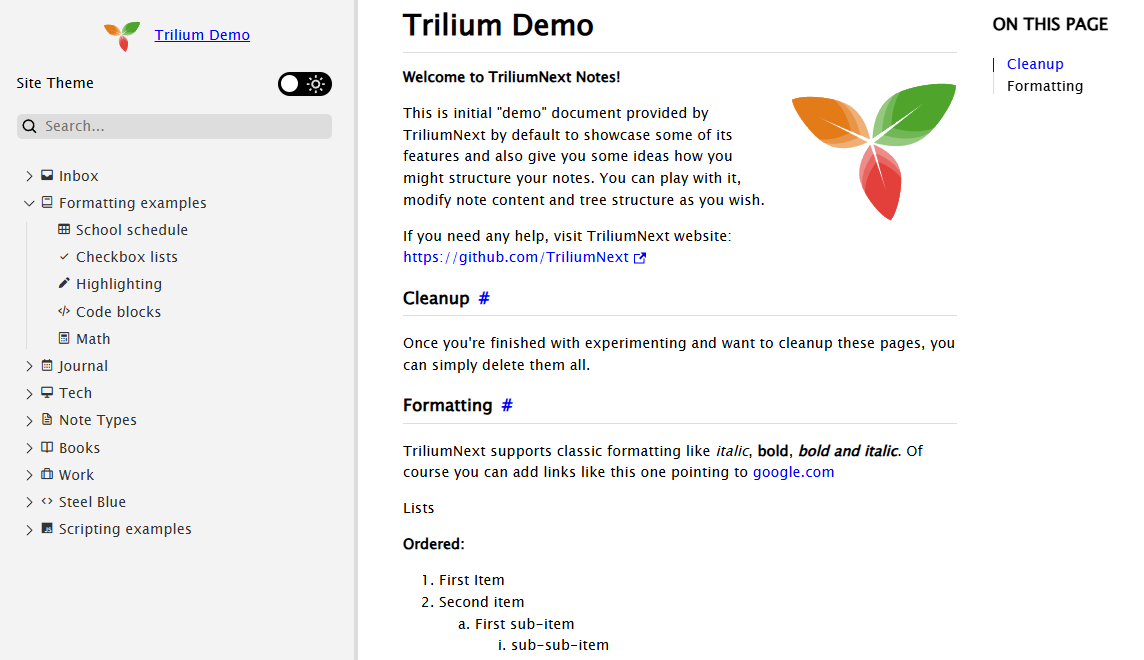
Features, interaction and limitations
- Searching by note title.
- Light and dark mode, following the visitor's system setting by default, also while the page is open. The visitor can pick Light, Dark or System with the buttons at the top of the navigation pane; the choice is remembered by the browser.
- A layout centered on wide screens, with the navigation tree and the table of contents at either side of the content, and a mobile-friendly layout on narrow ones. There, the navigation tree slides in from the menu button in the header, and lists the headings of the current page below its entry (at the top of the pane, for a page the tree does not show).
- Collapsible tree with the same note icons as the application. It keeps the sections the visitor expanded and its scroll position while they move between the pages of the site, and shows the current note.
- Customizable logo.
- Quick navigation buttons (previous and next note).
- Notes that hide their children from the tree with
#subtreeHidden(such as a Kanban Board) show a badge counting them in place of listing them. The page of one of those children shows only that child below its parent, and the previous and next buttons skip them. - The subpages of a text or code note shown below its content as cards, as in the application. Each card shows the icon of the subpage and the start of its text (or its
#shareDescription), or, for a subpage without text, links to its own first subpages. The cards can be hidden with#hideChildrenOverview. - Displaying the date of the last update of the note, written out in the application's language.
- Marking the page with the application's language and its text direction, and the content of the note with its own content language, for screen readers and right-to-left text.
By note type
| Supported features | Limitations | |
|---|---|---|
| Text |
| |
| Code |
| |
| Saved Search | Not supported. | |
| Relation Map | Not supported. | |
| Note Map | Not supported. | |
| Render Note | Not supported. | |
| Collections |
|
|
| Mermaid Diagrams |
| |
| Canvas |
|
|
| Web View | Not supported. | |
| Mind Map | The diagram is displayed as a vector image. |
|
| Geo Map | Not supported. | |
| File | A PDF is shown in a viewer and a video or audio file plays in the browser's player. Any other file can be downloaded. |
|
While the sharing feature is powerful, it has some limitations:
- Static Note Tree
- Protected Notes: Cannot be shared.
- Include Notes: Not supported.
Some of these limitations may be addressed in future updates.
Prerequisites
To use the sharing feature, you must have a Server Installation of Trilium. This is necessary because the notes will be hosted from the server.
Sharing a note
Enable Sharing: To share a note, toggle the
Sharedswitch within the note's interface. Once sharing is enabled, an URL will appear, which you can click to access the shared note.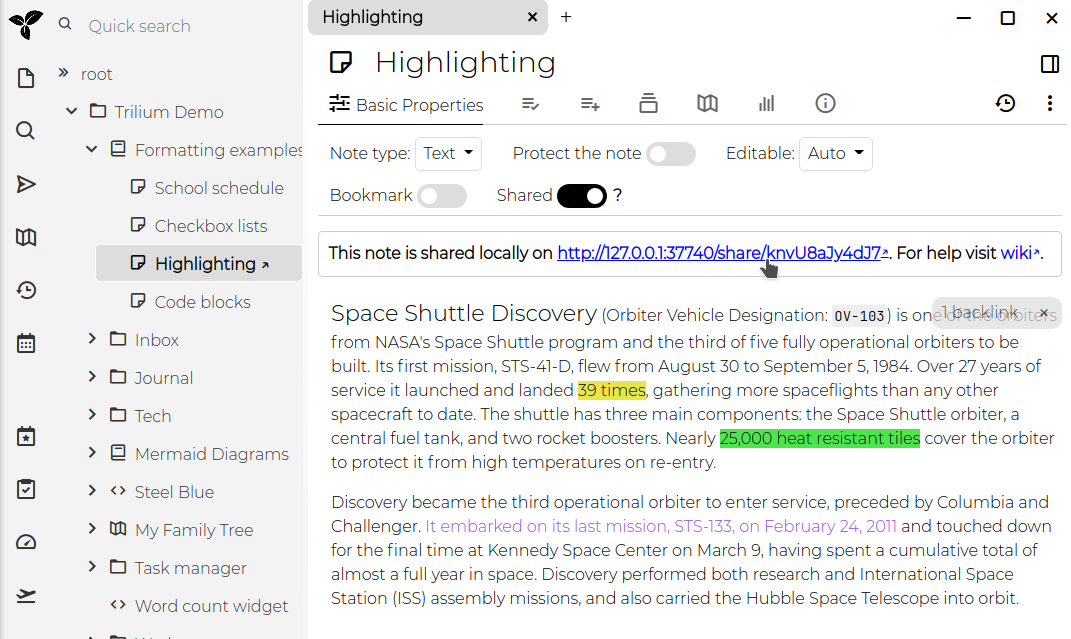
Access the Shared Note: The link provided will open the note in your browser. If your server is not configured with a public IP, the URL will refer to
localhost (127.0.0.1).
Sharing a note subtree
When you share a note, you actually share the entire subtree of notes beneath it. If the note has child notes, they will also be included in the shared content. For example, sharing the "Formatting" subtree will display a page with basic navigation for exploring all the notes within that subtree.
Viewing and managing shared notes
You can view a list of all shared notes by clicking on Advanced → Shared notes in the Global menu. This allows you to manage and navigate through all the notes you have made public.
Security considerations
- Shared notes are published on the open internet and can be accessed by anyone with the URL unless the notes are password-protected.
- The URL's randomness does not provide security, so it is crucial not to share sensitive information through this feature.
- Trilium takes precautions to protect your publicly shared instance from leaking information for non-shared notes, including opening a separate read-only connection to the Database. Depending on your threat model, it might make more sense to use Exporting static HTML for web publishing and use battle-tested web servers such as Nginx or Apache to serve static content.
Password protection
To protect shared notes with a username and password, you can use the #shareCredentials attribute. Add this label to the note with the format #shareCredentials="username:password". To protect an entire subtree, make sure the label is inheritable.
Advanced sharing options
Customizing the appearance of shared notes
The default design should be a good starting point, but you can customize it using your own CSS:
- Custom CSS: Link a CSS Code note to the shared page by adding a
~shareCssrelation to the note. If you want this style to apply to the entire subtree, make the label inheritable. You can hide the CSS code note from the tree navigation by adding the#shareHiddenFromTreelabel. - Omitting Default CSS: For extensive styling changes, use the
#shareOmitDefaultCsslabel to avoid conflicts with Trilium's default stylesheet.
Adding JavaScript
You can inject custom JavaScript into the shared note using the ~shareJs relation. This allows you to access note attributes or traverse the note tree using the fetchNote() API, which retrieves note data based on its ID.
Adding custom HTML
You can inject custom HTML snippets into specific locations of the shared page using the ~shareHtml relation. The HTML note should contain the raw HTML content you want to inject, and you can control where it appears by adding the #shareHtmlLocation label to the HTML snippet note itself.
The #shareHtmlLocation label accepts values in the format location:position:
- Locations:
head,body,content - Positions:
start,end
For example:
#shareHtmlLocation=head:start- Injects HTML at the beginning of the<head>section#shareHtmlLocation=head:end- Injects HTML at the end of the<head>section (default)#shareHtmlLocation=body:start- Injects HTML at the beginning of the<body>section#shareHtmlLocation=content:start- Injects HTML at the beginning of the content area#shareHtmlLocation=content:end- Injects HTML at the end of the content area
If no location is specified, the HTML will be injected at content:end by default.
Example:
const currentNote = await fetchNote();
const parentNote = await fetchNote(currentNote.parentNoteIds[0]);

for (const attr of parentNote.attributes) {
    console.log(attr.type, attr.name, attr.value);
}
Custom share templates
To completely redesign the share, it is possible to create or use an existing custom share template.
Creating human-readable URL aliases
Shared notes typically have URLs like http://domain.tld/share/knvU8aJy4dJ7, where the last part is the note's ID. You can make these URLs more user-friendly by adding the #shareAlias label to individual notes (e.g., #shareAlias=highlighting). This will change the URL to http://domain.tld/share/highlighting. The URL with the note's ID keeps working and redirects to the alias.
Important:
- Ensure that aliases are unique.
- Using slashes (
/) within aliases to create subpaths is not supported.
Setting a custom favicon
To customize the favicon for your shared pages, create a relation ~shareFavicon pointing to a file note containing the favicon (e.g., in .ico format).
Sharing a note as the root
You can designate a specific note or folder as the root of your shared content by adding the #shareRoot label. This note will be linked when visiting [http://domain.tld/share](http://domain/share), making it easier to use Trilium as a fully-fledged website.
Displaying an index of shared notes
When accessing a share, the sub-notes will be displayed in a tree on the left. But since multiple note trees can be shared, it might be useful to display a list of all the different share trees.
To do so, create a shared text note and apply the shareIndex label. When viewed, the list of shared roots will be displayed at the bottom of the note.
Linking to an external website
Sometimes it's useful to include a link to an external website alongside your shared notes — for example in the shared navigation or in an index. To do so, add the #shareExternalLink label to a note, with the target URL as its value (e.g. #shareExternalLink="https://example.com").
Any link pointing to this note will then redirect to the external website and open in a new browser tab, instead of opening the note's own shared page. Opening the note's shared URL by its ID also redirects to the external website. This applies to:
- the listing produced by the
#shareIndexlabel; - the navigation tree of the shared site;
- the "Subpages" list shown under a parent note;
- inline links to this note from within other shared notes.
The URL must be absolute and include the scheme (e.g. https://).
Attribute reference
| Attribute | Description |
|---|---|
#shareHiddenFromTree | this note is hidden from the left navigation tree, from its parent's list of subpages, from shared note maps and from the share's search, but still accessible with its URL |
#shareExternalLink | when a link points to this note (from the share index, a subpage list, or an inline link in another shared note), it redirects to the given external URL in a new tab instead of the note's shared page. Value is the absolute URL, e.g. https://example.com. |
#shareAlias | define an alias using which the note will be available under https://your_trilium_host/share/[your_alias] |
#shareOmitDefaultCss | default share page CSS will be omitted. Use when you make extensive styling changes. |
#shareRoot | marks note which is served on /share root. |
#shareDescription | define text to be added to the HTML meta tag for description. It also describes the note in the list of subpages of its parent, in place of the start of its text. |
#shareRaw | Note will be served in its raw format, without HTML wrapper. See also Serving directly the content of a note for an alternative method without setting an attribute. |
#shareDisallowRobotIndexing | Indicates to web crawlers that the page should not be indexed of this note by:
|
#shareCredentials | require credentials to access this shared note. Value is expected to be in format username:password. Don't forget to make this inheritable to apply to child-notes/images. |
#shareIndex | Note with this label will list all roots of shared notes. |
#shareHtmlLocation | defines where custom HTML injected via ~shareHtml relation should be placed. Applied to the HTML snippet note itself. Format: location:position where location is head, body, or content and position is start or end. Defaults to content:end. |
Customizing logo
It's possible to adjust the logo which is displayed above the navigation tree (in the header, on a narrow screen).
| Attribute | Description |
|---|---|
~shareLogo | Relation set to an image to use as logo. The image must be part of the share tree (it can be hidden if needed). Without it, the logo is the icon of the shared root note. |
#shareLogoWidth | The width of the logo, as a number without unit. With #shareLogoHeight, it sets the proportions of the logo, which is shown 32 pixels wide. Default is 53. |
#shareLogoHeight | The height of the logo, as a number without unit. With #shareLogoWidth, it sets the proportions of the logo. Default is 40. |
#shareRootLink | URL to navigate to when the logo is pressed. |
Customizing OpenGraph
A meta-property is left out of the page when its attribute is not set. Without an image, link previews use a small card.
| Attribute | Description |
|---|---|
#shareOpenGraphColor | This adjusts the theme-color meta-property. |
#shareOpenGraphURL | This adjusts the og:url and twitter:url meta-properties. It is also the address a relative og:image is completed with, so it should be the public address of the shared site, such as https://example.com/share/. |
#shareOpenGraphDomain | Adjusts the twitter:domain meta-property. |
#shareOpenGraphImage ~shareOpenGraphImage | Can be either a label with the address of an image, or a relation to an image File. This controls the og:image meta-property. Sites that show a preview of the link load the image from their own servers, so a relative address, which the relation always gives, is completed with #shareOpenGraphURL; without it, the image does not show in such previews. |
Credits
Since v0.95.0, a new theme was introduced (and enabled by default) which greatly improves the visual aspect of the Share feature, as well as its functionality (such as mobile support, dark/light mode, collapsible tree, etc.). This theme is an adaptation of the Trilium Rocks! by zerebos.