Link Previews
Link previews turn a pasted URL into a rich, metadata-aware widget that can be displayed in three visual modes:
Link display modes
A link preview can be displayed in one of three link display modes:
- Icon & text — a link showing the site's favicon and page title (quite similar to Internal (reference) links). Use this when you want the link to flow with the surrounding paragraph.
- Card — a block-level preview with thumbnail, title, description, and site name. Use this when the link is the focus of a paragraph.
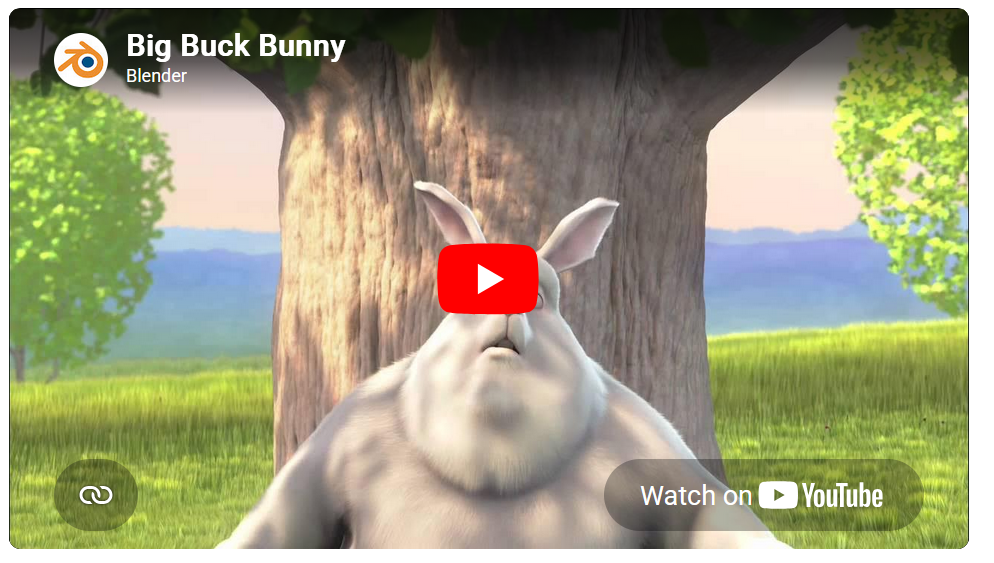
- Embed — a block-level player.
- Supported for YouTube videos, which play in the YouTube player, and for audio and video files at a web address, which play in the media player of Trilium.
- To prevent unwanted remote requests, nothing is loaded from the site until you click play. Until then, a video shows its thumbnail with a play button, and an audio file its controls.
- The player can be resized and aligned (see Audio and video below).
A fourth link display mode, Text, inserts an ordinary link without a preview.


Inserting a link preview
There are four ways to create one:
1. By pasting a URL
A link preview is automatically created:
- By pasting the URL and pressing Space. This will create an Icon & text link preview.
- When at the start of a new paragraph, pressing Enter will create a card, or an embed for a YouTube video or an audio or video file.
To undo an automatic link preview, press Ctrl+Z immediately afterwards which keeps it as a text link instead. Alternatively, once a link preview was created, click on the link and select Text from the link preview toolbar, which makes a link that reads as the title of the page.
This automatic conversion can be disabled by going to Options → Text Notes and unchecking Autogenerate link previews from the Features section.
If the link is not accessible to the Trilium server (or the network request fails for any other reason), it will not be converted to a link preview. The address of an audio or video file whose name ends in a known extension, such as .mp4, .webm, .mp3 or .flac, becomes an embed all the same.
2. From the link dialog
Since v0.107.0, a link preview is created from the same Add link dialog as any other link (see External links):
- Press in the Formatting toolbar, or press Ctrl+K, to open the dialog on Web page.
- Type or paste the address, then pick the preview in Display as: Icon & text, Card or, for a YouTube video or the address of an audio or video file, Embed. Text inserts an ordinary link. Display as is not shown when text is selected, since the link then keeps the selected text.
- Optionally, type a Link title to show instead of the page's own title. A Card also offers a Description to show instead of the page's own description.
- When you leave the address field, or paste the address with the Paste button, Trilium reads the page and fills an empty Link title, and the empty Description of a card, with the page's own. A spinner at the end of a field shows that its value is loading; once you type in the field, what you type is kept. Switching Display as to Card fills the Description the same way, without reading the page again.
- Press Enter or Insert link to confirm. The link appears right away and turns into the preview once Trilium has read the page.
To keep the dialog from reading the page, go to Options → Text Notes and, in the Features section, turn off Automatically retrieve titles for text links (for Text) or Automatically retrieve title and description for icon & text links and cards (for Icon & text and Card). Both are on by default. While they are on, Trilium contacts the page as soon as you leave the address field, also for a text link. Inserting an Icon & text link or a Card reads the page either way, since the preview is built from it.
Alternatively, use Slash Commands and choose Link to a web page (with icon) or Link to a web page (as a card) (both are also found by link preview). Each opens the same dialog on Web page, with Icon & text or Card already picked.
To turn an existing link into a preview, open its Edit link dialog and change Display as, or pick a display in the Display menu of the link's toolbar. Either way, a link whose text differs from its address keeps that text as the title of the preview.
3. From the Insert menu, for audio and video
Choose Audio/video embed from the Insert buttons menu or the Slash Commands. Paste the address of a YouTube video, or of an audio or video file, and press Insert media or Enter to insert it as an Embed. The Paste button at the end of the field replaces its text with the text on the clipboard. This button is shown only where Trilium can read the clipboard: in the desktop app, and in a browser over HTTPS unless access to the clipboard was blocked.
The media is inserted once Trilium has read the address, which can take a few seconds: the title and thumbnail of a YouTube video, or whether a file is audio or video. When the address cannot be read, or is that of a web page rather than of a YouTube video or a media file, an error is shown and the prompt stays open. Opening another note in the meantime cancels the insertion.
4. By saving browser tabs from the Web Clipper
When the Web Clipper saves the tabs of a window, each tab becomes an Icon & text link preview showing the title and favicon the browser displays for it. Because this data comes from the browser, pages behind a login keep their real title, and the Trilium server does not contact the saved pages.
When Autogenerate link previews is turned off, the tabs are saved as a list of text links instead.
Altering an existing link preview
Click on an inserted Icon & text or Card link preview to select it, and a small toolbar will appear with the following options:
- Open link, which opens the page in a new tab, and Copy address (URL).
- The Edit link button, which opens the Edit link dialog on the link preview, as does pressing Ctrl+K while it is selected. The dialog changes its address, its Link title (especially useful if the title is hidden behind a login screen), the Description of a card and how it is displayed. A new address shows the title and description of the new page, unless you type your own.
- The Display menu, which converts the preview to a normal link that reads as its title (Text) or switches it to another display mode (Icon & text, Card or Embed).
- The Embed option is only shown for a YouTube video or an audio or video file. A Card of a file whose address does not end in a known extension, such as
.mp4or.mp3, no longer offers it.
- The Embed option is only shown for a YouTube video or an audio or video file. A Card of a file whose address does not end in a known extension, such as
- The More actions menu, with Open link, Edit link, Copy address (URL), the same display modes under Display as, and Unlink, which replaces the preview with its address as plain text.
Right-clicking a link preview selects it and opens its More actions menu.
To color a link preview, select it and pick a color with the font color or background color button, as for text. The font color applies to the title of an Icon & text link and to the text of a Card; the background color fills the whole preview. A preview keeps its colors when its display mode changes, except for an Embed, which cannot be colored.
Audio and video
A YouTube video, a video file or an audio file shown as an Embed has a size, a position, a title and a caption, like an Include Note. A video keeps its shape, so a YouTube Short stands upright and an older video can be 4:3. A YouTube video inserted in an earlier version is 16:9 until it is inserted again. In the editor, a click on the video both plays it and selects it, and so does a later click on the player.
A video file or an audio file plays in the media player of Trilium, the one of File notes, with its play button, seek bar and volume. A video file shows a picture of one of its frames, taken when it is inserted (see Where the preview data comes from below), and a icon when it has none. An audio file shows a row of controls. When a file cannot be played, a message takes the place of the player, at the size of the video. Under it is the error that the site answered, if any, such as HTTP 404: Not found for a file that is no longer there.
The toolbar of a selected embed offers:
- Copy address (URL).
- The Display menu, which turns the embed into an Icon & text or Card link preview with its title, or a Text link that reads as its title. The text of its caption stays, as a paragraph after it.
- The More actions menu:
- Open externally opens the media outside Trilium: in the browser, or in the app that handles the link, such as the YouTube app on Android.
- Edit... opens the Edit link dialog with only the Address (URL) and the Link title of the media, as does pressing Ctrl+K while the embed is selected. With another address, the embed plays the new media and keeps its size, position, title and caption. It takes the thumbnail and the shape of the new media, and a video file gets a picture of one of its frames, as when it is inserted. A video at its first size takes the first size of the new video, and an audio file in place of a video, or a video in place of an audio file, takes the size of new media. A new address shows the title of the new media, unless you type your own. When the address is not that of a YouTube video, an audio or a video file, the embed stays as it was and Trilium shows an error.
- Copy address (URL).
- The display modes of the Display menu under Display as.
- Size: a Resizable video can be resized and placed in the text, a Full video takes the width of the note, or less when it would be taller than most of the window, and a Compact video is a row with its title alone. A new video is Resizable. A YouTube video inserted in an earlier version is Full. An audio file is Compact, a row of controls, or Resizable, a box with the controls under the visualizer, whose width can be resized. Default returns the media to the size it was inserted at.
- Position: under Break text, Align left, Align center and Align right place the video on lines of its own, at that side of the note. Under Wrap text, Align left and Align right place it at that side and let the text run beside it. Align center is the default. Only a Resizable video or audio file can be positioned.
- Show title shows the title of the media above it, as a link to the media. New media is inserted without its title. The button of the title opens this same menu.
- Show caption adds a caption under the video, centered, and puts the cursor in it. The caption is part of the text note, so it can be formatted like the rest of the text. While the cursor is in the caption, the video stays selected and keeps its toolbar. Choosing Show caption again removes the caption.
- Delete block removes the video from the note.
Right-clicking a video file or an audio file opens the same More actions menu. So does right-clicking a YouTube video, but only until it plays: from then on, the right-click goes to YouTube's player, which shows its own menu.
To resize a Resizable video or audio file, select it and drag the handle in its bottom-right corner, or its bottom-left corner for one aligned to the right. The height of a video follows the width. Default in the Size submenu returns a video to its first size.
On a shared page, the media keeps its width, position and caption, but not its title. A video or audio file plays in the browser's own player once the visitor clicks it. In the mobile layout, media with a position other than Align center takes the full width.
Where the preview data comes from
When you insert a link preview, Trilium fetches metadata once and stores it with the note:
- YouTube URLs: the title, the channel name and the shape of the video are fetched via YouTube's public oEmbed endpoint, and the video's thumbnail is downloaded at up to 1280×720.
- Audio and video files: Trilium reads the start of the file, enough to tell audio from video and, for most MP4 and WebM files, the shape of the video. The rest of the file is not downloaded, and the file is not copied into Trilium. Once a video file is inserted, the editor takes a picture of a frame a few seconds into it as its thumbnail. The frame is read through the Trilium server, so the site of the file sees the server and not your browser. The standalone (browser) and mobile versions have no such server: they read the frame from the site directly, and a video whose site does not let other sites read it has no thumbnail.
- All other URLs: Trilium fetches the page and reads OpenGraph tags (
og:title,og:description,og:image,og:site_name), falling back to the page's<title>and<meta name="description">. The site's favicon and the page's image are downloaded as well.
The text is kept in the note's HTML. The images are kept as system Attachments of the note, listed under Generated by Trilium.
Because the data is stored in the note itself, link previews continue to render correctly when you reopen the note, share/publish it, or export to HTML — without any further network requests.
The metadata is captured at insertion time and is not automatically refreshed. If the linked page later changes its title or thumbnail, you'll need to re-insert the link to pick up the new values. To refresh a link, simply create it again.
A YouTube embed inserted before v0.107.0 keeps its smaller thumbnail, shown blurred, until the link is inserted again.
When accessing a Server Installation, the data is fetched from the remote URL by the server and not the client.
Known limitations
- The Embed display mode supports YouTube and audio and video files. Pages of other video and media platforms fall back to a Card preview.
- An audio or video file plays from its address: it needs that address to be reachable, and stops playing when the file is moved or deleted. It plays only in a format that the browser, or the desktop app, supports.
- A file served over plain
http://might not play in the desktop app or from a Trilium server reached overhttps://. - An audio file shows no visualizer and no waveform, unlike an audio File note, since the site of the file does not generally let Trilium read its sound.
- Pages that block automated fetches may produce a minimal preview (hostname only).
- Link previews require the Trilium server to reach the target URL, so they won't generate previews for pages on networks the server can't see.