Synchronization
Trilium is an offline-first note-taking application that stores all data locally on the desktop client. However, it also offers the option to set up synchronization with a server instance, allowing multiple desktop clients to sync with a central server. This creates a star-shaped topology:
flowchart LR
    laptop["Desktop app<br>(laptop)"] <--> server[("Sync server")]
    work["Desktop app<br>(work computer)"] <--> server
    home["Desktop app<br>(home computer)"] <--> server
In this setup, a central server (referred to as the sync server) and multiple client (or desktop) instances synchronize with the sync server. Once configured, synchronization is automatic and ongoing, requiring no manual intervention.
Setting Up Synchronization
Security Considerations
Setting up the server securely is critical and can be complex. It is crucial to use a valid TLS certificate (HTTPS) rather than an unencrypted HTTP connection to ensure security and avoid potential vulnerabilities.
Synchronizing a Desktop Instance with a Sync Server
This method is used when you already have a desktop instance of Trilium and want to set up a sync server on your web host.
- Server Deployment: Ensure your server instance is deployed but uninitialized.
- Desktop Configuration: Open your desktop instance, navigate to Options → Sync → Sync server, and set the Server address to your sync server's address.
- Note that the sync server can also be overridden through Configuration (config.ini or environment variables), case in which that value takes precedence. If that's the case, a field called Server in use indicates it.
- Testing Sync: Click the Test sync button to verify the connection to the sync server.
- If successful, the client will start pushing all data to the server instance.
- This process may take some time, but you can continue using Trilium. Periodically check the server instance to confirm when the sync is complete. Once finished, you should see the login screen on the server.
Synchronizing a Desktop Instance from a Sync Server
This method is used when you already have a sync server and want to configure a new desktop instance to sync with it.
- Desktop Setup: Follow the desktop installation page.
- Initial Configuration: When prompted, choose the option to set up sync with a sync server.
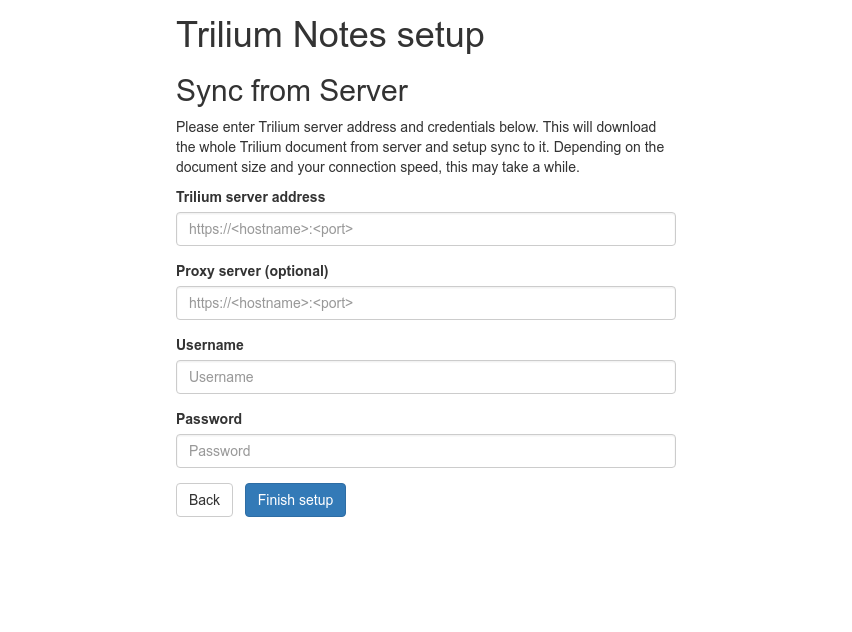
- Server Details: Configure the Trilium server address and enter the server's password. If the server has Multi-factor authentication with TOTP enabled, also enter a one-time password from your authenticator app, or a recovery code.
- Finish Setup: Click the "Finish setup" button. If successful, you will see the following screen:
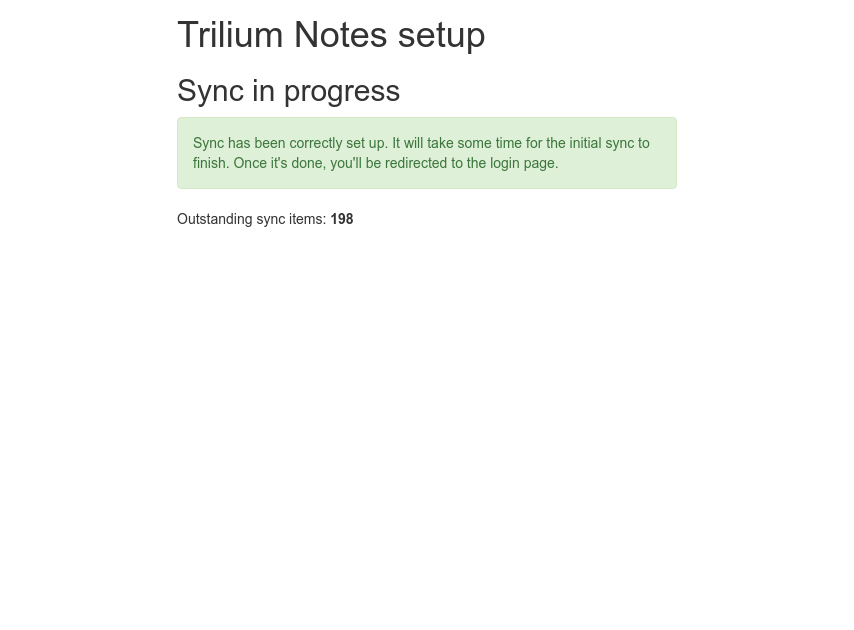
Once synchronization is complete, you will be automatically redirected to the Trilium application.
Desktop-to-desktop sync
This method allows two desktop instances to synchronize between each other without requiring a Server Installation.
Every desktop app contains a built-in server. In this setup, the new desktop instance uses that server to act as the sync server for the existing one, so it must be running and reachable over the network whenever the other instance synchronizes. Both devices must be on the same network.
flowchart LR
    existing["Existing desktop app"] <-->|"same network"| builtin
    subgraph newApp ["New desktop app"]
        builtin[("Built-in server")]
end- New desktop: On the first start, in the setup screen, choose Connect a desktop app. The page lists the Addresses for this device and waits for a connection.
- Network access: If the page says the device can't be reached by other devices, select Allow network access & restart. Trilium restarts, after which you choose Connect a desktop app again.
- Existing desktop: Open Options → Sync, set the Server address to one of the addresses shown on the new desktop (for example
http://192.168.0.10:37840), then select Test now. - Initial sync: The new desktop shows the progress of the sync and opens the knowledge base once it is complete. From then on, the existing desktop keeps synchronizing with the new one.
Proxy Configuration
Two proxy setups are supported:
- Explicit Proxy Configuration: Set the proxy server in Options / Sync. Only unauthenticated proxy servers are supported.
- System Proxy Settings: If no proxy server is explicitly configured, Trilium will use the system proxy settings.
Troubleshooting
Date/Time Synchronization
For successful synchronization, both client and server must have the same date and time, with a tolerance of up to five minutes.
Certificate Issues
When using TLS, Trilium will verify the server certificate. If verification fails (e.g., due to self-signed certificates or certain corporate proxies), you can run the Trilium client with the NODE_TLS_REJECT_UNAUTHORIZED environment variable set to 0:
export NODE_TLS_REJECT_UNAUTHORIZED=0This will disable TLS certificate verification, significantly reducing security and exposing the setup to MITM attacks. It is strongly recommended to use a valid signed server certificate. Newer Trilium versions include a script called trilium-no-cert-check.sh for this purpose.
Conflict Resolution
If you edit the same note on multiple instances before synchronization, Trilium resolves conflicts by retaining the newer change and discarding the older one. The older version remains accessible in note revisions, allowing data recovery if needed.
Hash Check
After each synchronization, Trilium computes a hash of all synced data on both the client and the sync server. If there is a discrepancy, Trilium will automatically initiate a recovery mechanism to resolve the issue.