Note tree contextual menu
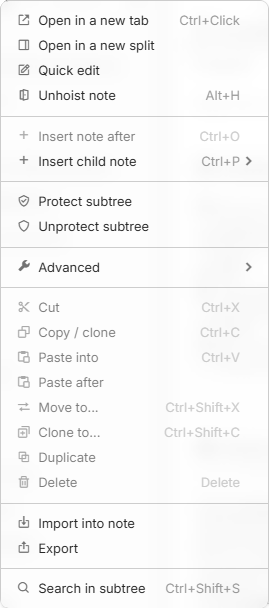
The note tree menu can be accessed by right-clicking in the Note Tree.
Interaction
The contextual menu can operate:
- On a single note, by right clicking it in the note tree.
- On multiple notes, by selecting them first. See Multiple selection on how to do so.
- When right clicking, do note that usually the note being right clicked is also included in the affected notes, regardless of whether it was selected or not.
Available options
The most frequent actions stand side by side at the top of the menu, each as an icon over its name. Use ← and →, or ↑ and ↓, to move between them.
- Cut
- Will place the given notes in clipboard.
- Use one of the two paste functions (or the keyboard shortcuts) to move them to the desired location.
- Copy
- Will place the given notes in clipboard.
- Use one of the two paste functions (or the keyboard shortcuts) to copy them to the desired location.
- Note that the copy function here works according to the Cloning Notes functionality (i.e. the note itself will be present in two locations at once, and editing it in one place will edit it everywhere).
- To simply create a duplicate note that can be modified independently, look for Duplicate.
- Paste into
- Pastes the notes in clipboard as child notes of the right-clicked one.
- Shown only after notes have been cut or copied.
- Paste after
- Pastes the notes in clipboard underneath the right-clicked one.
- Shown only after notes have been cut or copied.
- Delete
- Will delete the given notes, asking for confirmation first.
- In the dialog, the following options can be configured:
- Delete also all clones to ensure that the note will be deleted everywhere if it has been placed into multiple locations (see Cloning Notes).
- Erase notes permanently will ensure that the note cannot be recovered from Recent Changes.
The rest of the menu lists its options one per row:
- Open note
- Clicking it opens the note in a new tab.
- Hovering it or clicking its arrow opens a submenu with the places the note can be opened in: Open in a new tab, Open in a new split (to the right of the note, within the current tab) and Open in a new window.
- On mobile, the menu lists Open, Open in a new tab and Open in a new split directly instead of Open note, and leaves out Open in a new window. Open shows the note in the current tab, which also opens a note with children, since tapping one lists its children instead.
- Quick edit
- Opens the note in Quick edit, over the current one.
- Hoist note
- Will focus the note tree on this note. See Note Hoisting for more information.
- Insert note after
- Allows easy creation of a note with a specified note type.
- The Code submenu starts with the scripting notes, each a code note set up for its role: Custom CSS (with
#appCss), Widget (with#widgetand a starting skeleton) and Backend script. The enabled code languages follow. - Collections are grouped in the Collection submenu. The note types created less often, the Snippets and the AI quick action are in the More submenu.
- Templates will also be present (if any) at the end of the list, under a Templates heading. The button beside the heading opens Content Manager in the Options, where the templates can be managed.
- To find an entry quickly, type into the search box at the top of the submenu, or just start typing while the submenu is open. The submenu then lists every matching entry, including those inside its own submenus (such as a code language or a collection), each with the submenu it comes from. Use ↑ and ↓ to pick a match, Enter to create it, and Esc to clear the search.
- The note will be added on the same level of hierarchy as the note selected.
- Insert child note
- Same as Insert note after, but the note will be created as a child of the selected note.
- Move to…
- Will display a modal to specify where to move the desired notes.
- Clone to…
- Will display a modal to specify where to clone the desired notes.
- Duplicate
- Creates a copy of the note and its descendants, placed right after the original.
- When the note has child notes, the item also has an arrow, set apart by a divider. Hovering the item or clicking the arrow opens a submenu:
- Note and its children does the same as clicking Duplicate.
- This note only copies the note with its content and attributes, but without any of its child notes. Links and relations to the original children keep pointing at them.
- This process is different from Cloning Notes since the duplicated note can be edited independently from the original.
- An alternative to this, if done regularly, would be Templates.
- Archive/Unarchive
- Marks a note as archived.
- If the note is already archived, it will be unarchived instead.
- Multiple notes can be selected as well. However, all the selected notes must be in the same state (archived or not), otherwise the option will be disabled.
- Protect subtree/Unprotect subtree
- On a note that is not protected, Protect subtree marks this note and all of its descendants as protected. On a protected note, the item reads Unprotect subtree and unprotects them instead, after asking for confirmation. Either action asks for the password if no protected session is running. See Protected Notes for more information.
- Hovering the item or clicking its arrow opens a submenu with both actions, for instance to unprotect the protected notes below a note that is not protected itself.
- Import into note…
- Opens the import dialog and places the imported notes as child notes of the selected one.
- Export…
- Opens the export dialog for the selected notes.
- Search in subtree
- Opens a full Search with it preconfigured to only look into this note and its descendants (the Ancestor field).
Advanced options
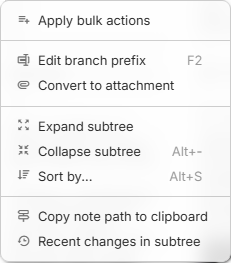
The advanced options menu offers some of the less frequently used actions for notes.
To access these options, first look for the Advanced option at the bottom of the contextual menu to reveal a sub-menu with:
- Apply bulk actions…
- Opens the Bulk Actions dialog, to apply actions such as adding labels or moving notes to multiple notes at once (see Multiple selection).
- Edit branch prefix…
- Opens a dialog to assign a name to be able to distinguish clones, see Branch prefix for more information.
- Convert to attachment…
- Converts the selected notes to Attachments of their parent notes.
- This functional is most useful when dealing with image File notes that were imported from an external source or an older version of Trilium.
- Expand subtree
- Expands all the child notes in the Note Tree.
- Collapse subtree
- Collapses all the child notes in the note tree.
- Sort by…
- Opens a dialog to sort all the child notes of the selected note.
- The sorting is done only once, there is an automatic sorting mechanism as well that can be set using Attributes.
- See Sorting Notes for more information.
- Copy note path to clipboard
- Copies a URL fragment representing the full path to this branch for a note, such as
#root/Hb2E70L7HPuf/4sRFgMZhYFts/2IVuShedRJ3U/LJVMvKXOFv7n. - The URL to manually create Links within notes, or for note Navigation.
- Copies a URL fragment representing the full path to this branch for a note, such as
- Recent changes in subtree
- This will open Recent Changes, but filtered to only the changes related to this note or one of its descendants.