Markdown
Trilium has always supported Markdown through its import feature, however the file was either transformed to a Text note (converted to Trilium's internal HTML format) or saved as a Code note with only syntax highlight.
This note type is a split view, meaning that both the source code and a preview of the document are displayed side-by-side. See Note types with split view for more information.
Rationale
The goal of this note type is to fill a gap: rendering Markdown but not altering its structure or its whitespace which would inevitably change otherwise through import/export.
Even if Markdown is now specially treated by having a preview mechanism, Trilium remains at its core a WYSWYG editor so Markdown will not replace text notes.
Features
Source view pane
- Syntax highlighting for the Markdown syntax.
- Nested syntax highlighting for code inside code blocks, including Mermaid Diagrams in
```mermaidblocks. - When editing larger documents, the preview scrolls along with the source editor.
Preview pane
The following features are supported by Trilium's Markdown format and will show up in the preview pane:
All standard and GitHub-flavored syntax (basic formatting, tables, blockquotes).
Basic HTML is also supported (e.g. collapsible blocks using
<details>and<summary>).Code blocks with syntax highlight.
Math Equations (both inline and block)
Mermaid Diagrams using
```mermaidInclude Note (no built-in Markdown syntax, but HTML syntax works just fine):
<figure class="include-note" data-note-id="vJDjQm0VK8Na" data-box-size="expandable"> <figcaption>An optional caption, with <strong>HTML</strong> formatting</figcaption> </figure>- The caption is optional. Markdown is not processed inside the HTML block, so format the caption with HTML tags.
- Includes written as
<section class="include-note">, the syntax of earlier versions, still work. - These can also be quickly created via the
/includecommand or via a dedicated keyboard shortcut (not assigned by default).
Internal (reference) links via its HTML syntax, or through a Wikilinks-like format (only Note ID):
[[Hg8TS5ZOxti6]]To-do lists with extended task states:
- [ ] None
- [/] Doing
- [X] Done
- [?] Maybe
- [-] Cancelled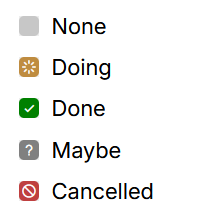
Task states are customizable: you can reorder them, create new ones with different colors and symbols, or delete the ones you don't need. See Customizing to-do task states for more details.
Note that to-do items with task states other than "None" and "Done" are Trilium-specific and may not work well with other Markdown software.
Footnotes are also supported via the corresponding Markdown syntax:
This is [^1], while this is [^2]. [^1]: the first footnote [^2]: the second footnote- These can also be quickly created using the
/footnotecommand.
- These can also be quickly created using the
Aside blocks set content apart in a gray box at the right, with the main text wrapping around it (for the other positions and colors, see Supported syntax). Write the
<aside>tags on lines of their own, with blank lines around the content, which is read as Markdown:<aside> A **side note** at the right of the text. </aside>Page breaks for Printing & Exporting as PDF:
<div class="page-break"></div>Highlights (background color) are supported both via the
==Markdown syntax, as well as the canonical HTML representation in Trilium:==highlighted== <span style="background-color:#e5e64d;--tn-background:#e5e64d;">Highlighted</span>
Links
Multiple types of links are supported:
Web URLs can be written with the standard Markdown syntax:
[Wikipedia](https://www.wikipedia.org)Reference link to other notes with dynamic title, either by manually entering the note ID or via the Add link dialog:
[[B9oMG6rFvvfq]]Since v0.108.0, you can link to a heading or anchor in a text or Markdown note. The Add link dialog and the
@list write the link with its target after the note ID:[[B9oMG6rFvvfq?block=a1b2c3d4]] [[B9oMG6rFvvfq?bookmark=setup]]Reference link to other notes with a custom text:
[This is a link](#root/LhtnZxtVsUMp)
To create a link, either:
- Type it manually using the syntax described above.
- Use the Add link dialog by pressing Ctrl+L or typing the
/linkcommand.
Link Previews are also rendered, but there is no mechanism to insert them automatically as of now, they have to be copied from a Text note instead.
Reference anchors
Since v0.108.0, you can link to or excerpt a block in a Markdown note, such as a heading or paragraph. Trilium marks the block with a reference anchor. In the editor, it appears as a small chip with an anchor icon (). The chip is hidden in the preview.
The anchor keeps links and excerpts working when you move the block or change its text. If you remove the anchor, every link and excerpt that points to it breaks.
Trilium adds an anchor when you link to a heading from the Add link dialog or the @ list. It also adds anchors to referenced blocks when you convert a text note to Markdown.
To copy a reference, select text in the block and open the context menu. Under Copy, choose Copy reference to this block. If your selection spans several blocks, choose Copy reference to these blocks. If the block already has a chip, you can click it and choose Copy reference. See Block references for how to paste the reference as a link or excerpt.
A reference to several blocks uses two anchors. One marks the first block and the other marks the last. The reference includes both blocks and everything between them.
Editing around anchors
- Pressing Backspace or Delete next to a chip skips the chip and deletes the adjacent text.
- If you split a line with Enter, the anchor stays on the first line.
- A chip on its own line marks the block below it, such as a code block. Keep the chip and block together. If you press Enter at the end of the chip's line, the editor inserts a new line above the chip.
- When you cut and paste text, its anchor moves with it. When you copy and paste it within the same note, references still point to the original because the copy has no anchor.
- A dimmed chip has no effect. For example, if a block has two anchors, only the first one counts.
- To remove an anchor, click its chip and choose Remove reference.
The Add link dialog lists the anchors you name yourself. Reference anchors stay hidden from that list.
Keyboard shortcuts
The Markdown notes share some of the keyboard shortcuts from Text notes:
- Cut to note (Ctrl+X) which cuts the selection into a new child note.
- Add link (Ctrl+L) which shows the dialog to create external or reference links.
- Date/time (Alt+T) which respects the same formatting as text notes.
- Include note (not assigned by default), which triggers the same dialog to insert notes as the one for text notes.
In addition, the following formatting keyboard shortcuts are available:
- Ctrl+B to toggle bold.
- Ctrl+I to toggle italic.
- Ctrl+M to wrap the current selection in an inline math (
$). - Ctrl+Shift+X to toggle
strikethrough.
Images & attachments
Images can be inserted into the document in four different methods:
- Drag & drop directly into the editor area.
- Pasting an image from clipboard.
- Pasting a reference to another attachment (e.g. Copy reference to clipboard button).
- Use the
/imageslash command.
An image reference to an attachment looks like this:
Auto-completion
Slash commands
Just like Text notes, Markdown notes support a selection of slash commands:
- Inserting the current date & time (
/date). - Including another note (
/include). - Uploading and inserting an image (
/image). - Inserting a note link (
/link). - Inserting a math equation block (
/math). - Inserting a footnote (
/footnote). - Inserting a Mermaid diagram (
/mermaid), with one variant per sample template (e.g./mermaid:flowchart). - Inserting a collapsible block (
/collapsible). - Inserting tabs (
/tabs). - Inserting an aside block (
/aside), a gray box placed at the right with the text wrapping around it. - Inserting a page break for printing (
/page-break). - Inserting a table (
/table). - Creating admonitions (e.g.
/tip,/note,/important,/caution,/warning). - Inserting task items (
/todo:<state>, e.g./todo:done), one per configured task state. - Inserting code snippets (
/snippet:<name>) from your Markdown/plain-text snippet notes.
The list shows each command by its title, as in Text notes. Typing a command's title, its keyword (as listed above) or a related word such as latex or grid finds it.
Note that slash commands only work outside of code blocks and inline code.
Linking notes with @ or [[
As in Text notes, typing @ at the start of a line or after a space opens the note search. Picking a note replaces what was typed with a link to it in the Wikilinks-like format ([[noteId]]), which the preview shows as an Internal (reference) links with the note's title.
The search runs on everything typed after the @, spaces included, so a title such as @My meeting notes can be typed out; press Esc to close the list and go on writing. If no note fits, the list offers to create one, as a child of the Markdown note or in the inbox; the link is inserted once the note is created.
You can also start typing the link directly: [[ opens the same list, and closing the brackets yourself dismisses it. To change where an existing link points, place the cursor inside it and pick another note.
Since v0.108.0, the note is linked as soon as it is picked. A ¶ then follows the link, and the list shows where in the note the link can point: Link to the note (default), its headings and its anchors.
- To point the link at a heading or an anchor, type part of its name after the ¶ and press Enter or Tab. The link then carries its target after the note ID, such as
[[noteId?block=a1b2c3d4]]. - To keep the link to the whole note, press Enter on Link to the note (default), or press Esc. Pressing Backspace or typing a space right after the ¶ does the same.
- The ¶ is not part of the note. Text typed after it stays, unless a heading or an anchor is picked.
You can link to headings and anchors in text and Markdown notes. A note created from the list is linked without this step. To skip it for every note, turn off Suggest headings and anchors to link to under Note auto-completion in Options → Text Notes → Features.
Like slash commands, @ and [[ do nothing inside code blocks and inline code.
In the editor, a [[noteId]] link shows as the note's icon and title, followed by the heading or the anchor it points at, so you can tell which note it points to without looking up its ID. Clicking it, or moving the cursor next to it, shows the link as written so it can be edited. Links inside code blocks and inline code are left as they are.
Code block language auto-completion
Starting with v0.104.0, typing ``` to insert a code block will automatically open a list of suggested language types which have syntax highlighting.
The list of languages matches the one for Code notes set in Options, it's not the full list of languages supported by Trilium.
Other features
- The Table of contents will be displayed in the Right Sidebar based on the Markdown-level headings.
- A Markdown note included in a Text note shows its source, its preview or both, and can be edited in place. See Included Markdown in Include Note.
Shared notes
When a Markdown note is shared publicly, it will be rendered with extended formatting just like Text notes.
Most of the features described previously should be supported. If you face any issues, feel free to report it alongside a sample Markdown file.
Creating Markdown notes
There are two ways to create a Markdown note:
- Create a new note (e.g. in the Note Tree) and select the type Markdown, just like all the other note types.
- Create a note of type Code and select as the language either Markdown or GitHub-Flavored Markdown. This maintains compatibility with your existing notes prior to the introduction of this feature.
Import/export
Import
By default, when importing a single Markdown file it automatically gets converted to a Text note. To avoid that and have it imported as a Markdown note instead:
- Right click the Note Tree and select Import into note.
- Select the file normally.
- Uncheck Import HTML, Markdown and TXT as text notes if it's unclear from the metadata.
When importing a Trilium ZIP, it will preserve the Markdown type without converting to text notes thanks to the meta-information in it.
Exporting
When exporting Markdown files, the extension is preserved and the content remains the same as in the source view (with some small exceptions such as handling of attachments).
When exporting Markdown files as ZIP, choosing HTML or Markdown as the export format makes no difference as that only affects Text notes.
If the Markdown note contains attachments, a ZIP export will rewrite the links to attachments so that they are replaced with a relative path to the attachment. On import, the links are re-written back.
Conversion between text notes and Markdown notes
Text notes can be converted into Markdown notes and vice versa. See Converting between note types.
Sync-scrolling & block highlight
When scrolling through the editing pane, the preview pane will attempt to synchronize its position to make it easier to see the preview.
In addition, the block in the preview matching the position of the cursor in the source view will appear slightly highlighted.
The sync is currently one-way only, scrolling the preview will not synchronize the position of the editor.
This feature cannot be disabled as of now; if the scrolling feels distracting, consider temporarily switching to the editor mode and then switching to preview mode when ready.