Right Sidebar
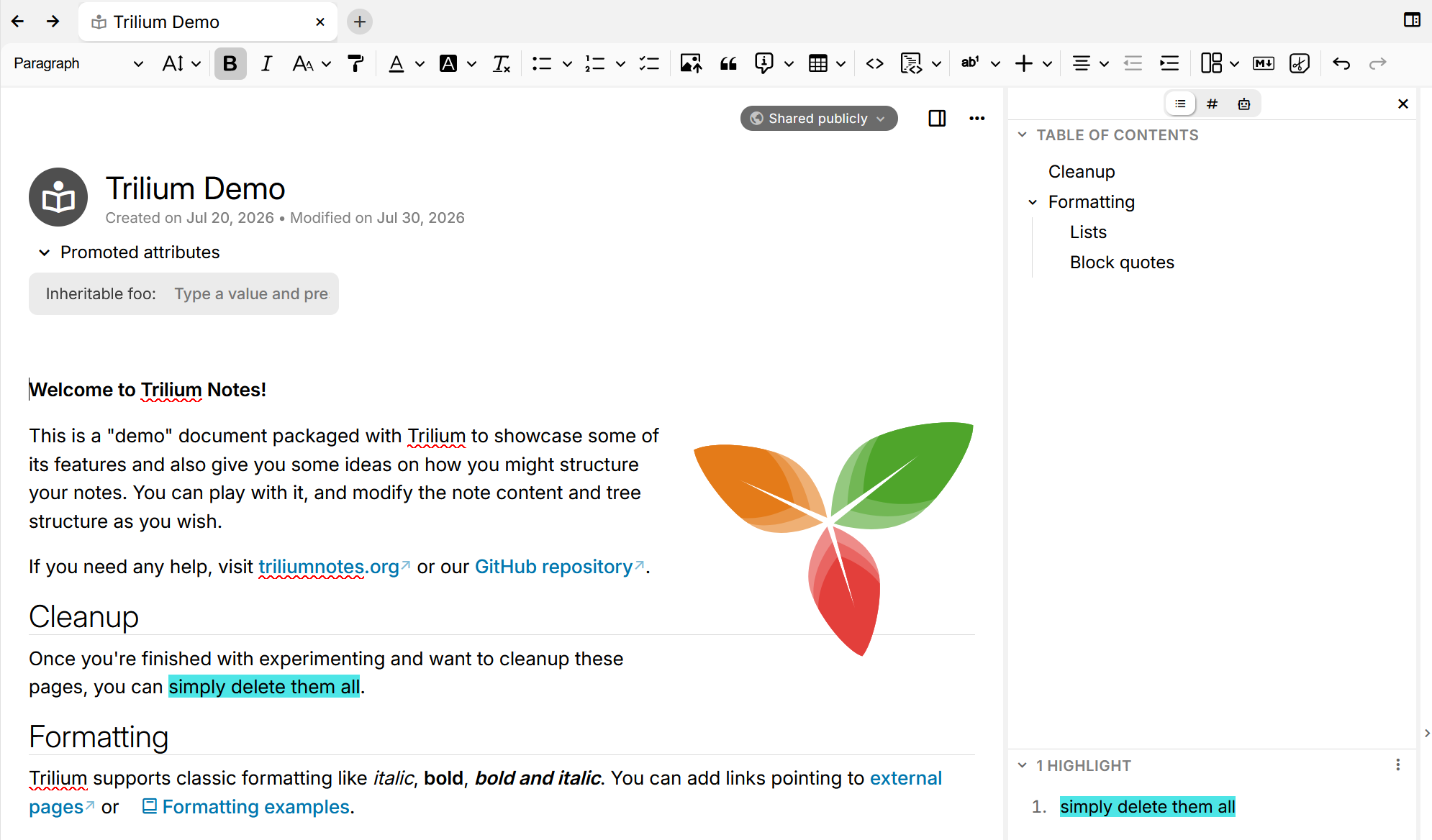
The right sidebar displays specific content for the current note. The sidebar is grouped into multiple tabs:
- Outline tab, which displays the table of contents, highlights and other navigation-related sections depending on the note type.
- Attributes tab, which provides a visual editor for the current note's Attributes.
- AI chat tab, which uses the AI integration to chat, with optional access to the current note.
- Connections tab, which groups together the note map, note paths, backlinks and similar notes.
Each window keeps its own selected tab, so switching tabs in one window does not affect the others. A newly opened window starts on the tab that was selected last.
Toggling the right sidebar
There are two ways to toggle the right sidebar:
- Via the icon near the title bar, which toggles whether the sidebar is docked.
- Via the Toggle right pane keyboard shortcut, which is not assigned by default.
Peeking the sidebar
There is a small strip near the right edge of the app which shows an arrow icon.
- When the sidebar is hidden, pressing the edge will peek the sidebar.
- In this mode the sidebar is shown temporarily above the content, without shifting the content of your notes.
- Clicking outside the sidebar while in peek mode will simply hide the sidebar. Same goes for the X button and clicking on the right edge.
- Pressing the pin icon will dock the sidebar.
- When the sidebar is docked, pressing the edge will hide the sidebar (similar to the toggle icon at the top).
The Peek Right Pane keyboard shortcut, Alt+] by default, does the same as pressing the strip.
Mobile support
On mobile, the right sidebar is replaced by the note panel, which opens as a sheet at the bottom of the screen from the button beside the Note menu.
- The tabs are switched from a bar at the bottom of the sheet. As on desktop, a tab with nothing to show for the current note is left out, and the Widgets tab lists the right pane widgets of scripts.
- The sections of a tab are displayed one after the other as cards, each with its name above it, instead of collapsible sections.
- The header of the sheet shows the name of the tab, except in the Attributes and AI chat tabs, where it holds their buttons instead (see Attributes tab and AI chat tab).
- Tapping a heading of the table of contents, or a page or an annotation of a PDF, closes the panel and scrolls the note to it.