Custom app-wide CSS
It is possible to provide a CSS file to be used regardless of the theme set by the user.
The quickest way to create one is Insert child note → Code → Custom CSS in the Note tree contextual menu.
Alternatively, create a Code note manually, set the language to CSS and apply the #appCss label.
Seeing the changes
Adding a new app CSS note or modifying an existing one does not immediately apply changes. To see the changes, press Ctrl+Shift+R to refresh the page first.
Sample use cases
Customizing the printing stylesheet
Per-workspace styles
When using Workspaces, it can be helpful to create a visual distinction between notes in different workspaces.
To do so:
- In the note with
#workspace, add an inheritable attribute#cssClass(inheritable)with a value that uniquely identifies the workspace (saymy-workspace). - Anywhere in the note structure, create a CSS note with
#appCss.
Change the color of the icons in the Note Tree
.fancytree-node.my-workspace.fancytree-custom-icon {
    color: #ff0000;
}
Change the color of the note title and the icon
To change the color of the note title and the icon (above the content):
.note-split.my-workspace .note-icon-widget button.note-icon,
.note-split.my-workspace .note-title-widget input.note-title {
    color: #ff0000;
}
Add a watermark to the note content
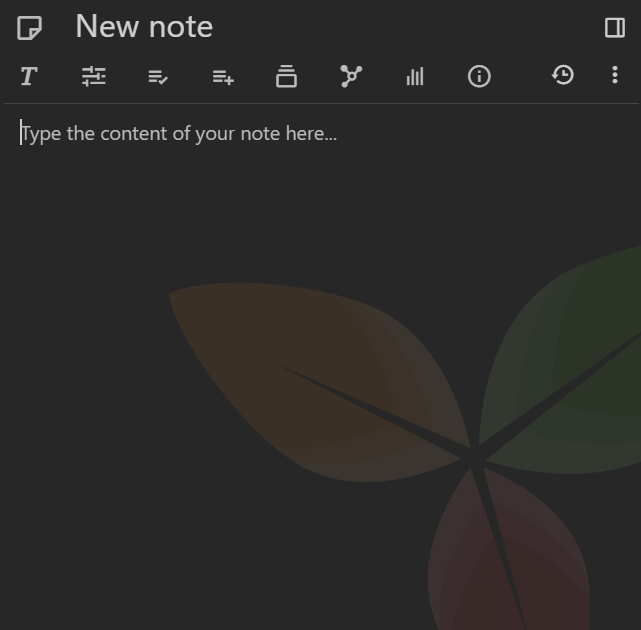
- Insert an image in any note and take the URL of the image.
- Use the following CSS, adjusting the
background-imageandwidthandheightto the desired values.
.note-split.my-workspace .scrolling-container:after {
    position: fixed;
    content: "";
    background-image: url("/api/attachments/Rvm3zJNITQI1/image/logo.png");
    background-size: contain;
    background-position: center;
    background-repeat: no-repeat;
    width: 237px;
    height: 44px;
    bottom: 1em;
    right: 1em;
    opacity: 0.5;
    z-index: 0;
}
Limitations
Some parts of the application can't be styled directly via custom CSS because they are rendered in an isolated mode (shadow DOM), more specifically:
- The slides in a Presentation.