Content language & Right-to-left support
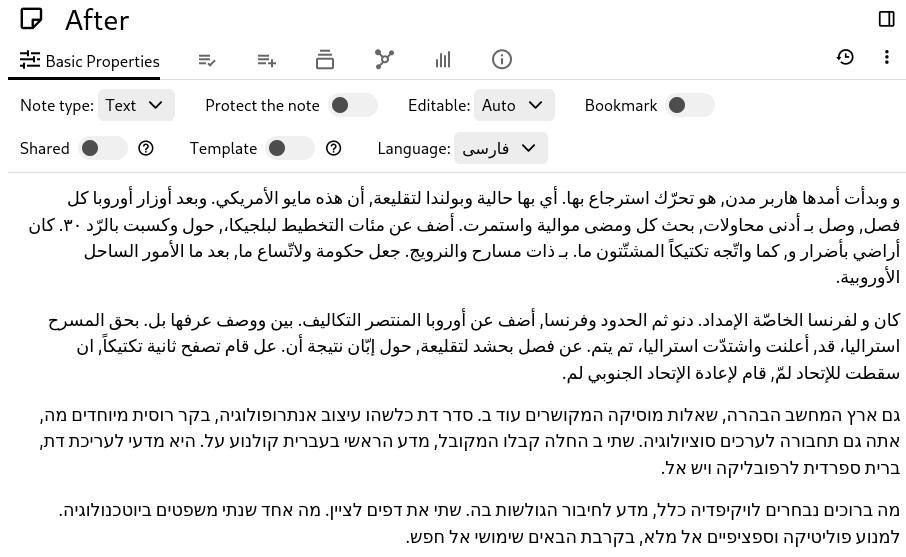
The content language determines:
- The spell-checking of the note, when in a browser. The desktop installation has a dedicated spellchecking section.
- Whether the text is displayed from right-to-left, for languages such as Arabic, Hebrew, etc.
- How typed quotes are automatically replaced (e.g. English uses
“text”, whereas some languages use«text»). This applies only if Options → Text → Single/Double quotation marks is set to Based on note's content language. - Which languages are offered by the In-editor AI assistant for translation.
- The language and the text direction the content is marked with on a shared page, which screen readers and browsers follow.
Setting the language of a single note
To set the language of the content of a Text note, there is a language selector in the Status bar indicated by a icon.
Adjusting the list of languages
By default, no language is configured. To configure them, go to Options → Language & Region → Content languages, or select the Configure languages... item when setting the language. The enabled languages are listed by their native names, sorted alphabetically, which is also the order the language selector shows them in. Here you can:
- Add a language by pressing the Add a language button (Add another language once one is enabled), which also shows how many languages are left, and then selecting it.
- Press the button beside a language to remove it from the list.
Default content language
Notes that do not have a language of their own follow Options → Language & Region → Default content language. It is set to English initially, and can be set to any content language, or to Based on the application's language.
If a note has a language set, it always takes precedence over the default.