Canvas
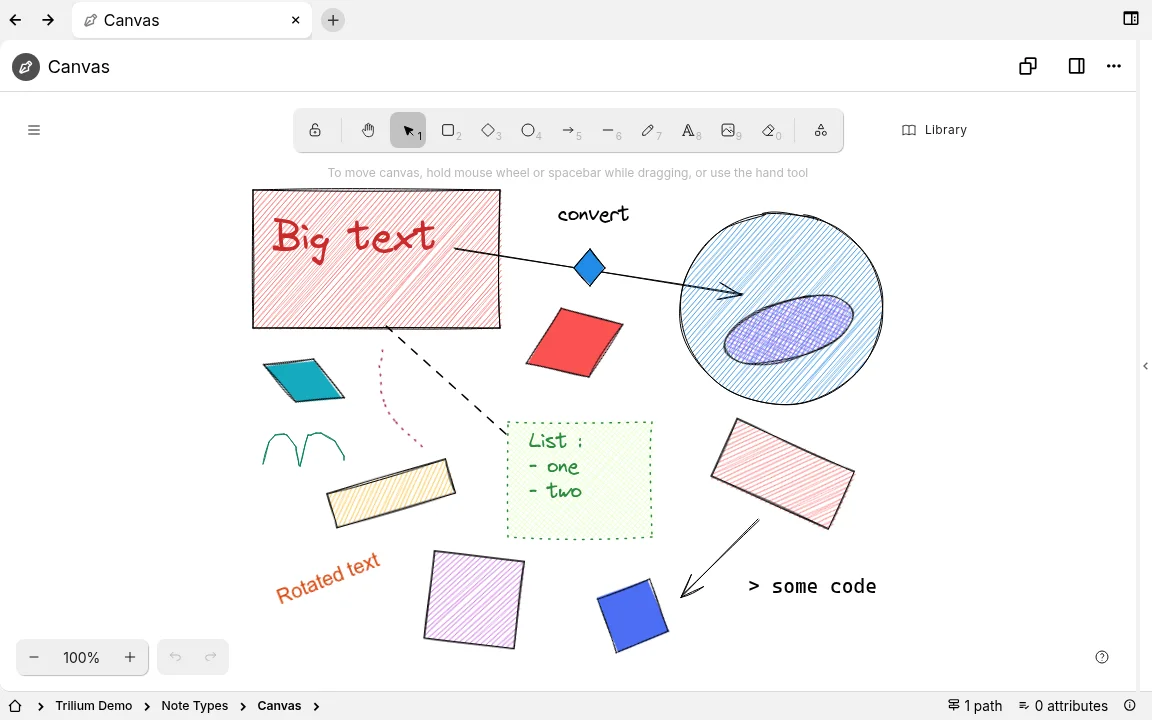
Canvas notes are whiteboards for diagrams and sketches on an infinite canvas, built on the Excalidraw library. Shapes, arrows and text stay editable after they are drawn: an arrow attached to a shape follows it when the shape moves, and text can be placed inside a shape. Drawing by hand with a mouse, a pen or a finger is also possible.
Interaction
Pen width
The pen draws at half the Stroke width picked in the properties panel, which suits handwriting. To draw at the full width instead, turn off Thin pen stroke in Options → Other. Strokes already drawn keep their width.
Embedding notes
Since v0.104.0, Canvas supports embedding notes in a similar fashion to the Include Note functionality for Text notes.
To embed a note:
- From the Note Tree, drag the item onto the canvas.
- Manually, by choosing More tools → Web Embed and pasting the link to the note (e.g.
root/MujWAc9fQ1nj).
Embedding notes in the canvas follows the same rules as Include Note: some notes are rendered as images (e.g. Mind Map), whereas some render fully interactive such as Collections.
Linking to a note
- From the Note Tree right click the note to be linked and selected Advanced → Copy note path to the clipboard.
- In the canvas note, right click an element and select Add link (or press Ctrl+K). Paste the link and press Enter.
- A icon will appear at the top-right of the element which will navigate to the linked note when clicked.
Drawing in a text note
To draw inside a Text note instead of in a note of its own, insert a drawing canvas with Drawing canvas in the Insert menu. See Drawing canvases in Include Note.