To-do Lists
Extended task states
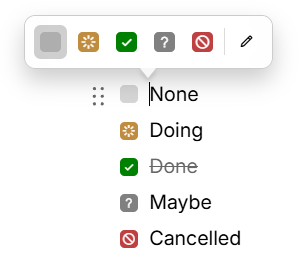
In Trilium, to-do items aren't limited to a simple "done" or "not done." Tasks can also be marked as in progress ("doing"), under consideration ("maybe"), or cancelled ("won't do"), thus giving a more accurate picture of where things actually stand.
Right-click the checkbox and select the desired state. Alternatively, press Ctrl+Shift+Enter to cycle through the task states. Tapping or left-clicking the checkbox, or pressing Ctrl+Enter in the item, will always toggle between "None" and "Done". On the Mobile Frontend, the states are buttons in the row of the List › button, which shows while the cursor is in the list.
Task states are fully preserved when converting between Text and Markdown notes, in both directions.
Customizing the extended task states
Task states are customizable: you can reorder them, create new ones with different colors and symbols, or delete the ones you don't need. See Customizing to-do task states for more details.
Keyboard shortcuts
When at the beginning on an empty paragraph, type the following to insert a to-do list:
[ ]for an unchecked item[x]for a checked item
Extended task states are supported as well, using its corresponding Markdown symbol. These are the defaults but they can be changed if needed (see Customizing to-do task states):
[/]for “Doing”.[?]for “Maybe”.[-]for “Cancelled”.
To reorder the item under the cursor, press Alt+Up or Alt+Down. To reorder multiple items, select them first.
See also
- To-do lists are meant for small task lists. For more complicated, day-to-day task tracking consider using a Kanban Board collection instead.