Jump to & command palette
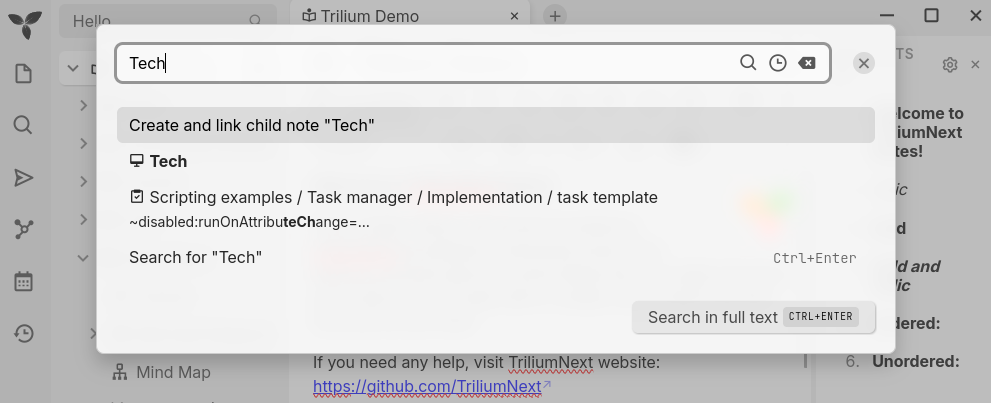
Jump to Note
The Jump to Note function allows easy navigation between notes by searching for their title. In addition to that, it can also trigger a full search or create notes.
To enter the “Jump to” dialog:
- In the Launch Bar, press button.
- Using the keyboard, press Ctrl + J.
In addition to searching for notes, it is also possible to search for commands. See the dedicated section below for more information.
Interaction
- By default, when there is no text entered it will display the most recent notes.
- Using the keyboard, use the up or down arrow keys to navigate between items. Press Enter to open the desired note.
- If the note doesn't exist, it's possible to create it by typing the desired note title and selecting one of two options:
- Create note places it in the Note Inbox: the note labelled
#inbox, today's Day Notes if there is none, or the top level if there is no journal either. While hoisted into a Workspaces, the workspace's own inbox is used, then today's day note if the workspace has a#workspaceCalendarRoot, otherwise the workspace root itself. The option names the destination, so it is always visible before the note is created. - Create child note places it under the note that is currently open.
- Create note places it in the Note Inbox: the note labelled
- When the title search does not find a note, the bar below the results offers two ways to search further. It stays below the list, however far the results are scrolled. Both are hidden while the field is empty or lists commands.
- The Include note contents switch searches the content of the notes as well as their titles, and lists what it finds in place of the current results, without leaving the dialog. It stays on while the query changes, until it is switched off. Press Shift+Enter to switch it from the keyboard.
- Show in full search opens the query in the full Search, in a new tab, where its options can refine it. Press Ctrl+Enter to run it from the keyboard.
- To see the keys the results answer to, click the ? button below the results, or press Alt+F1 while the search field is focused.
- On a wide enough desktop window, the note highlighted in the results is previewed on their right: its path, title, attributes and the start of its content. The preview follows the highlight as it moves through the results, and is left out for the command palette.
- The options to create a note are listed after the notes. When no note matches, the list says so above them. Enter opens the note that matches best, or creates the note when none matches. Otherwise, press ↑ from the first note to reach the options to create a note.
Recent notes
Jump to note also has the ability to show the list of recently viewed / edited notes and quickly jump to it.
To access this functionality, click on Jump to button on the top. By default, (when nothing is entered into autocomplete), this dialog will show the list of recent notes.
The recent notes are grouped by when they were last visited: Today, Yesterday, Past 7 days, Past 30 days and Older. The other note fields, such as the one in the Move to dialog, show the same list when empty: press the button at the end of the field, or ↓. Typing at least two characters lists the matching notes instead.
Command Palette
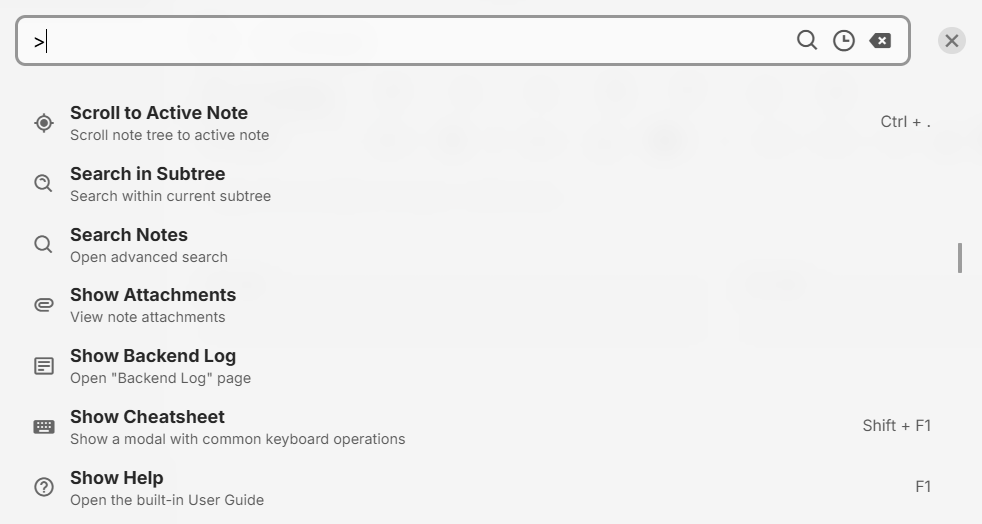
The command palette is a feature which allows easy execution of various commands that can be found throughout the application, such as from menus or keyboard shortcuts. This feature integrates directly into the “Jump to” dialog.
Interaction
To trigger the command palette:
- Press Ctrl+Shift+J to display the command palette directly.
- If in the “Jump to” dialog, type
>in the search to switch to the command palette.
Interaction:
- Type a few words to filter between commands.
- Use the up and down arrows on the keyboard or the mouse to select a command.
- Press Enter to execute the command.
To exit the command palette:
- Remove the
>in the search to go back to the note search. - Press Esc to dismiss the dialog entirely.
Options available
Currently the following options are displayed:
- Most of the Keyboard Shortcuts have an entry, with the exception of those that are too specific to be run from a dialog.
- Some additional options which are not yet available as keyboard shortcuts, but can be accessed from various menus such as: exporting a note, showing attachments, searching for notes or configuring the Launch Bar.
Limitations
Currently it's not possible to define custom actions that are displayed in the command palette. In the future this might change by integrating the options in the launch bar, which can be customized if needed.