Quick edit
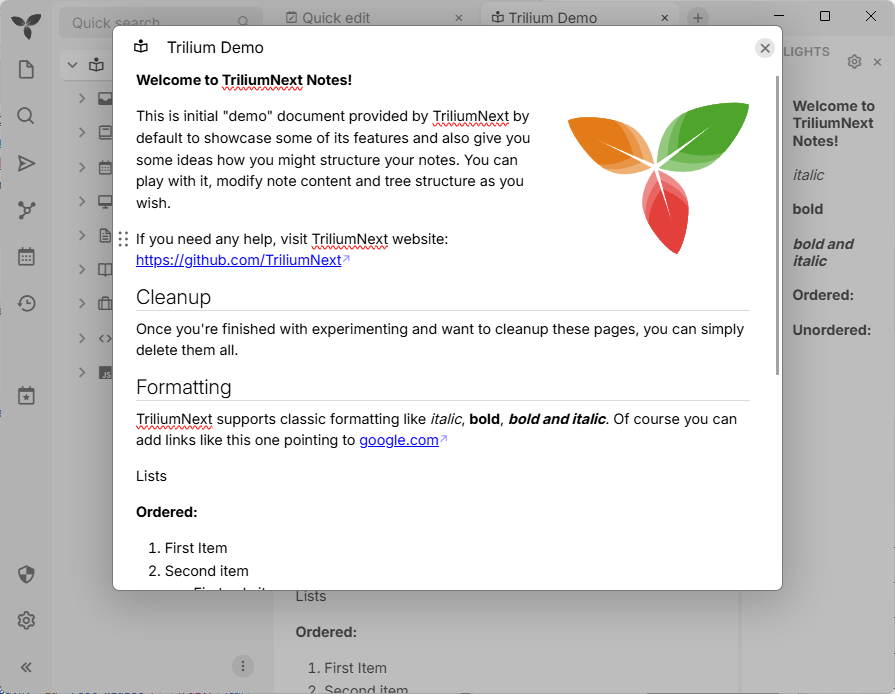
Quick edit provides an alternative to the standard tab-based navigation and editing.
Instead of clicking on a note which switches the Note Tree to the newly selected note, or navigating between two different Tabs, the Quick edit feature opens as a popup window that can be easily dismissed.
This feature is also well integrated with Collections such as the calendar view, which makes it easy to edit entries without having to go back and forth between the child note and the calendar.
Feature highlights
- All note types are supported, including Collections.
- Note that the Note List will not be displayed, except for notes of type Collections.
- For Text notes, depending on user preference, both the floating and classic editors are supported. See Formatting toolbar.
- The title and the note and the icon are editable, just like a normal tab.
- A link followed in the popup opens its note in the popup. The button before the note's icon then returns to the previous note.
- The note's actions and its menu are shown in the header of the popup, as in the title row of a tab.
- When other notes link to the note, a button with a link icon lists the Backlinks. Pressing one opens that note in the popup.
- The menu items that only work in a tab are not shown: Note map, Full width and Convert into attachment.
- Find in the menu, or Ctrl+F on the desktop application, opens the Search in note bar at the bottom of the popup. It searches the note in the popup, not the note in the tab behind it.
- A help page opened from the popup, such as through the help button of the note type, opens in a second popup on top of it. Closing that popup returns to the note being edited.
- The Promoted Attributes are also displayed.
- This integrates well with Collections where there are predefined attributes such as the Start date and End date, allowing for easy editing.
Accessing the quick edit
- From the Note Tree:
- Right click on a note and select Quick edit.
- or, press Ctrl+Right click on a note.
- On Internal (reference) links:
- Right click and select Quick edit.
- or, press Ctrl+Right click on the link.
- On a Note Tooltip, press the quick edit icon.
- In Collections:
Handling of read-only notes
The Quick edit feature has a unique behavior for Read-Only Notes:
- If the note is read-only due to performance reasons (auto read-only), then the note is made editable for quick editing.
- If the note has been manually set to read-only, then the note is read-only to prevent accidental change.
- In this case, the note can still be edited by on-screen instructions.
Mobile support
On a phone, the popup uses the full width of the screen and the note's content keeps the same side margin as a Text note. The Formatting toolbar of a text note sits at the foot of the dialog, below the note; its dropdowns open upwards so the keyboard does not cover them.