Vertical and horizontal layout
Trilium supports two different layouts, based on your preference.
Vertical layout
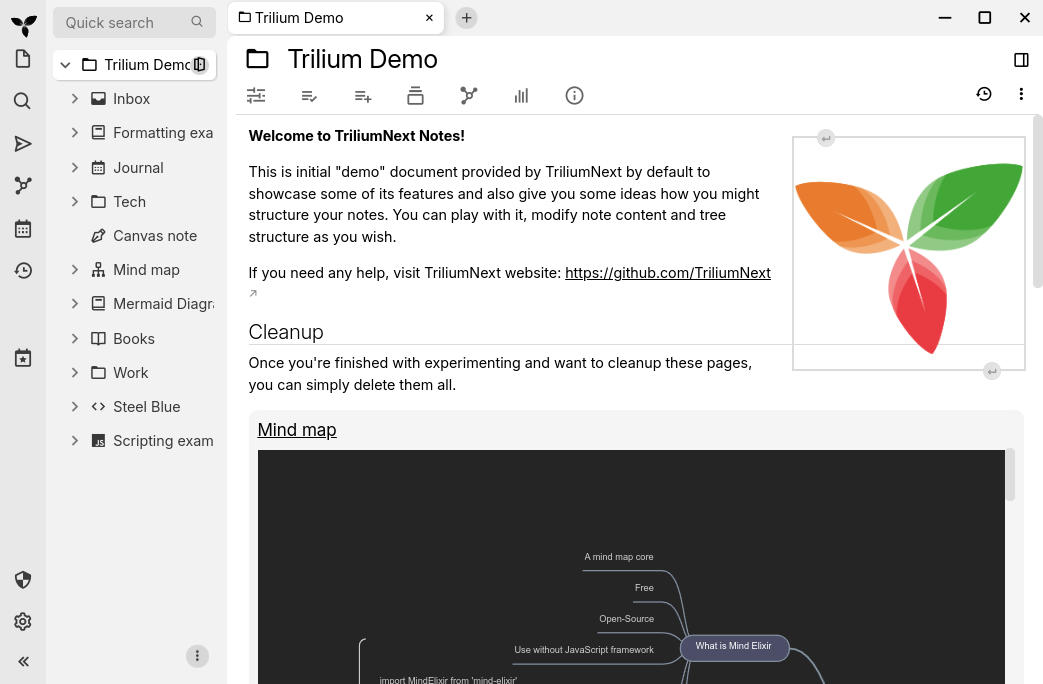
The vertical layout is Trilium's original layout:
- The Launch Bar is positioned on the left side of the screen, with buttons being laid out vertically.
- The tab bar is at the top, but to the right of the Note Tree.
- The Quick search is at the top of the Note Tree.
- The Note Tree can be collapsed by pressing the button at the bottom of the Launch Bar. While collapsed, it can be peeked temporarily above the content by pressing the strip on the right side of the Launch Bar.
- The Global menu can be accessed via the icon at the top of the Launch Bar.
Horizontal layout
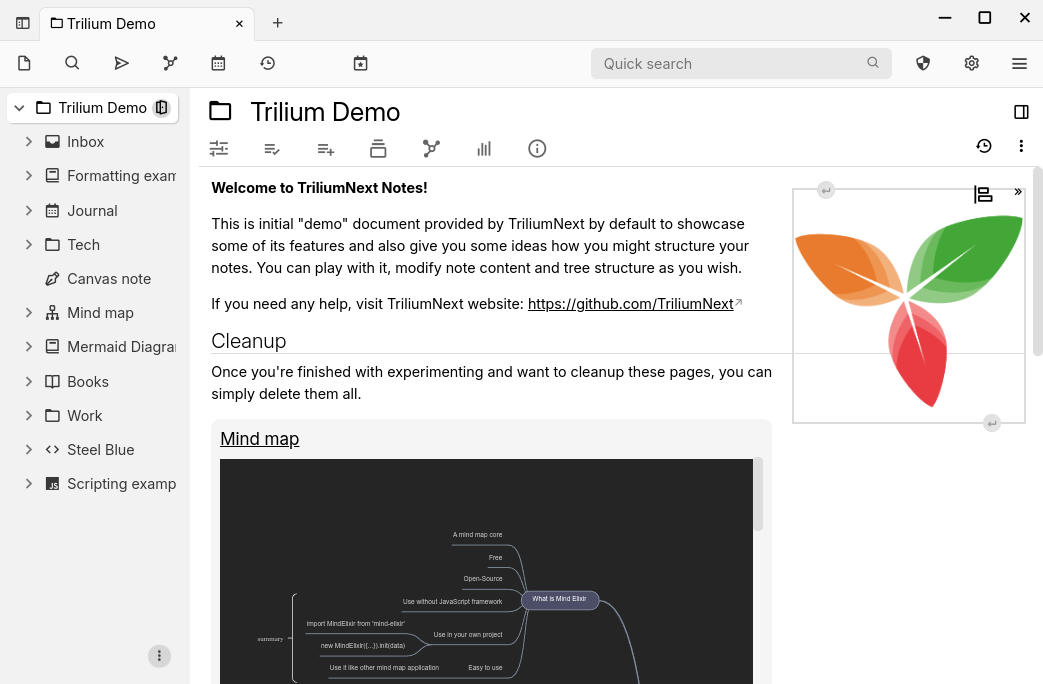
The horizontal layout is a more traditional layout, since it bears similarity with other applications. In this mode:
- The Launch Bar is at the top of the screen, with the buttons laid horizontally.
- The tab bar is at the top of the screen, but now covers the entirety of the width, allowing for more tabs to be displayed at once.
- The Quick search is now part of the Launch Bar. It can be moved around according to preference and even removed if needed.
- The Note Tree can be collapsed by pressing the small button to the left of the first tab. While collapsed, it can be peeked temporarily above the content by pressing the strip on the left edge of the app.
- The Global menu can be accessed via the button at the end of the Launch Bar.
Changing the layout
Go to Options and look for the Appearance option on the left. Then look for the Layout section, where there is the possibility to switch between the two available layouts.
Clicking an option will immediately apply the selected layout by reloading the window.