Note Tree
This page explains how to manipulate the note tree in TriliumNext, focusing on moving notes.
Drag and Drop
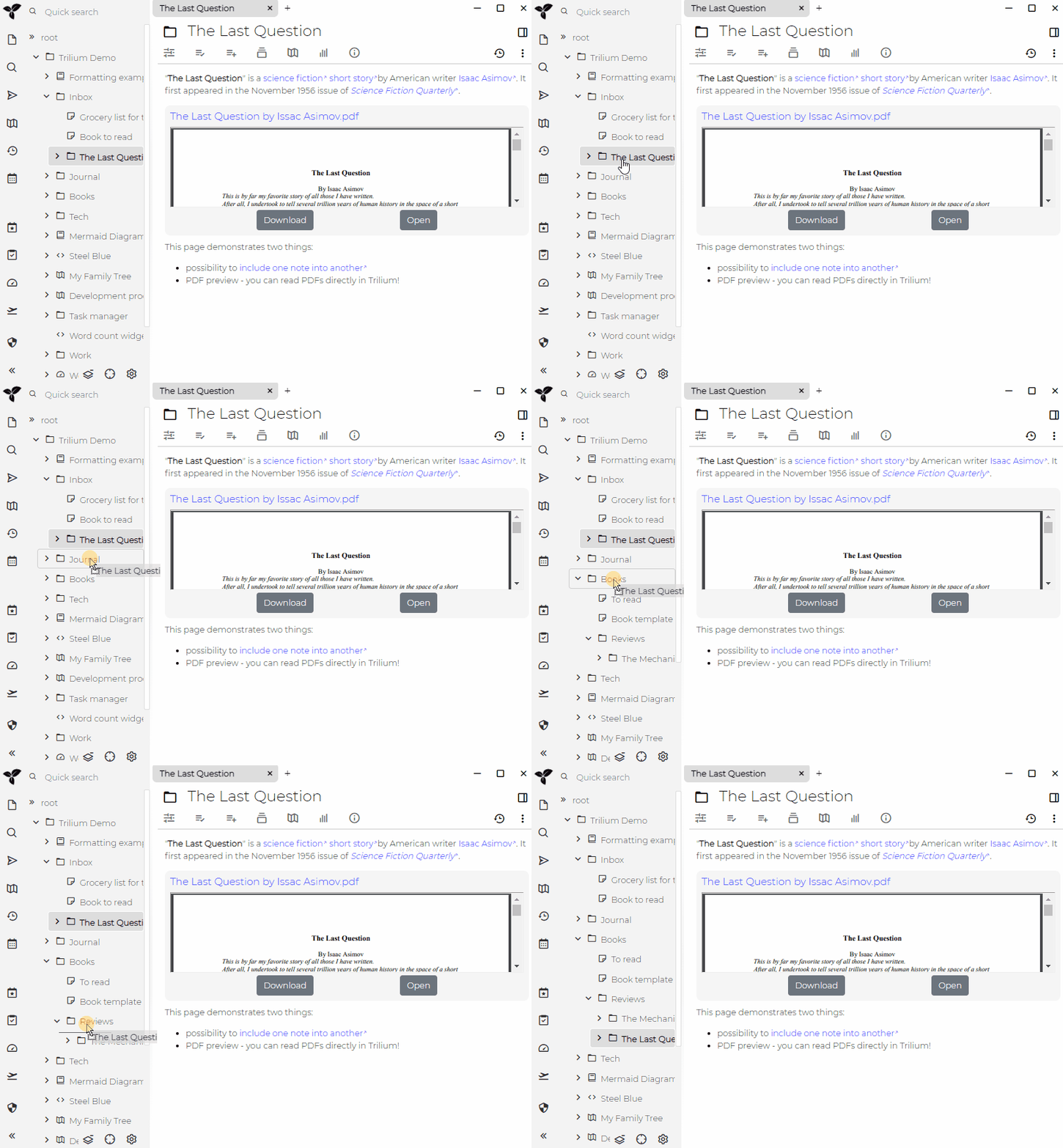
You can easily rearrange the note tree by dragging and dropping notes, as demonstrated in the example above.
Where the note lands depends on the part of the row the pointer is over:
- The middle of a note: the dragged note becomes its last child.
- The line between two notes: the dragged note is placed between them. Below an expanded note, that line places it as the first child.
Importing files
A file or archive can easily be imported into Trilium just by dragging it inside the note tree.
Note that a drag & drop always imports with safe import on, meaning that some features such as scripts are disabled in the upcoming notes. To bypass that, use the dedicated import feature (right click → Import into note).
Unlike the import dialog, the drag & drop also has some basic auto-detection of the import. For example, dragging a .zip file with a .obsidian folder in it will automatically trigger a dedicated Obsidian import.
Keyboard Manipulation
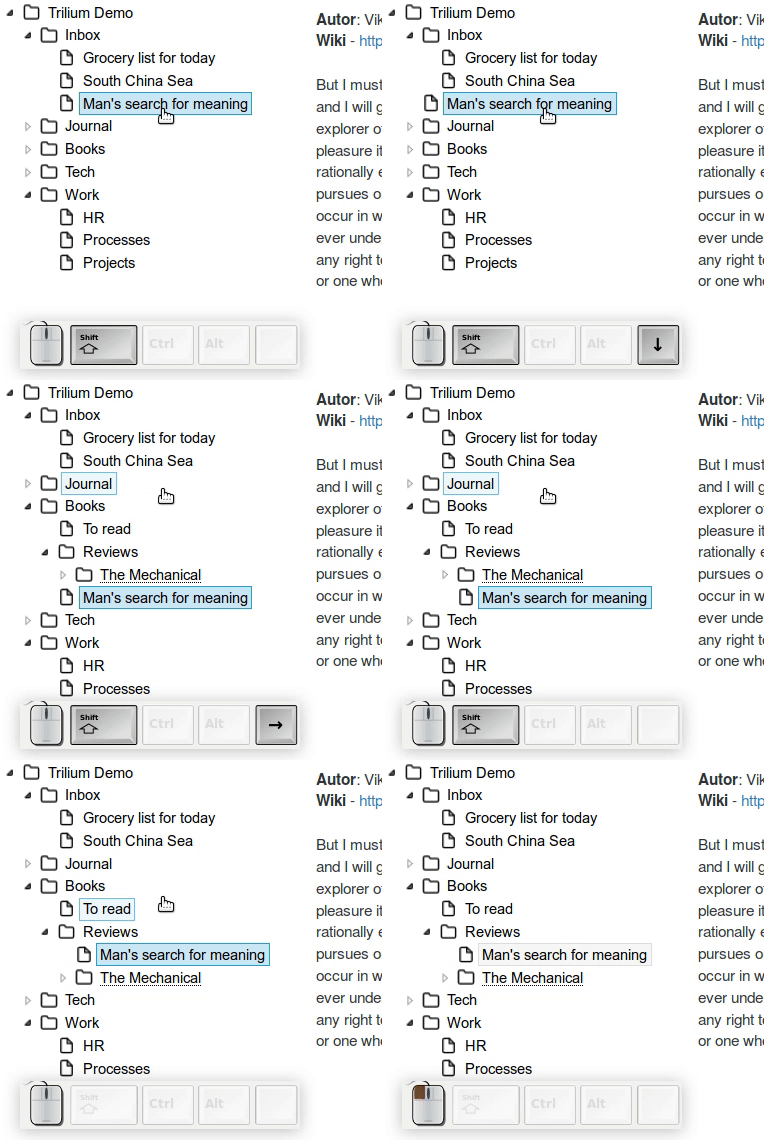 Trilium offers efficient keyboard-based manipulation using the following shortcuts:
- Ctrl + ↑ and Ctrl +↓: Move the note up or down in the order.
- Ctrl+←: Move the note up in the hierarchy by changing its parent to the note's grandparent.
- Ctrl+→: Move the note down in the hierarchy by setting its parent to the note currently above it (this action is best understood through a demo or hands-on experience).
- ← and →: Expand and collapse a sub-tree.
Context Menu
You can also move notes using the familiar cut and paste functions available in the context menu, or with the associated keyboard shortcuts: CTRL-C ( copy), Ctrl + X (cut) and Ctrl + V (paste).
See Note tree contextual menu for more information.
Tree Settings
Click the tree icon in the tree toolbar to open the tree settings popup. Each option takes effect as soon as it is changed:
- Display density: Relaxed (default) or Dense. Dense rows are shorter, so more notes fit on the screen. This setting is not synchronized, so each device keeps its own.
- Hide archived notes: When enabled, archived notes are not shown in the tree.
- Automatically collapse notes: When enabled, notes are collapsed after a period of inactivity to keep the tree tidy.
- Follow active note: When enabled (default), the tree automatically scrolls and expands parent nodes to keep the currently active note visible. A parent of the active note that you collapse stays collapsed until you navigate to another note or the active note is moved. When disabled, the tree is fully detached from navigation — only the background highlight of the active note is updated, but the tree viewport and its expanded/collapsed state are never changed by navigation. Use the crosshair button to manually jump the tree to the active note at any time.
Hiding and peeking the tree
To hide or show the note tree, press the button to the left of the first tab in the horizontal layout, or the button at the bottom of the Launch Bar in the vertical layout. The Toggle Left Pane keyboard shortcut, which is not assigned by default, does the same. See Vertical and horizontal layout.
A small strip with an arrow icon runs along the left edge of the app in the horizontal layout. In the vertical layout, it runs along the right side of the Launch Bar, and only shows while the tree is hidden.
- When the tree is hidden, pressing the strip will peek the tree.
- In this mode the tree is shown temporarily above the content, without shifting the content of your notes.
- Clicking outside the tree, pressing Esc or pressing the strip again will hide the tree.
- Pressing the button that shows the tree will dock it.
- In the horizontal layout, pressing the strip while the tree is docked will hide it.
The Peek Tree Pane keyboard shortcut, Alt+[ by default, does the same as pressing the strip. Only one panel is peeked at a time: peeking the tree hides a peeked Right Sidebar, and the other way around.
Keyboard shortcuts
The note tree comes with multiple keyboard shortcuts to make editing faster, consult the dedicated Keyboard shortcuts section.