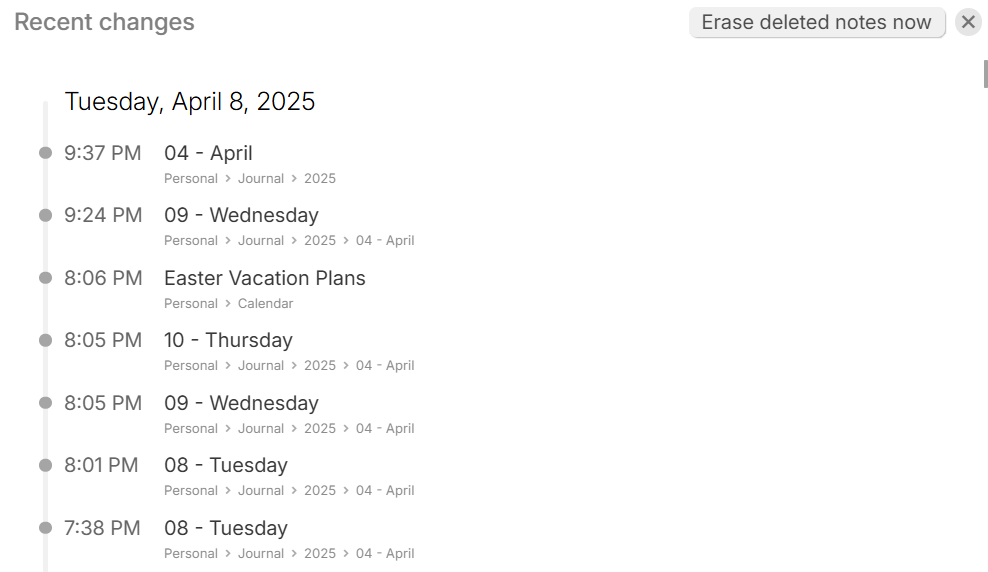
For an overview of the changes across all documents, press the button in the Launch Bar.
If there is a hoisted note or a workspace, the list of recent changes will be limited to the descendents of the hoisted note, or the workspace.
Right-clicking or pressing and holding the button lists up to 15 of the most recently changed notes that are not open in a tab. Selecting a note opens it in a new tab.
To limit the list of recent changes to a note and its descendants, look for the corresponding option in the Note tree contextual menu → Advanced.
Right-clicking or pressing and holding the button of the Tabs bar lists the most recently changed notes that are not open in a tab. All recent changes, at the bottom of that menu, opens this dialog.
Interaction
Notes which were changed will appear in reverse chronological order (latest update first).
The title of the note is displayed, as well as the note path. Clicking on the note title will dismiss the dialog and navigate to that particular note.
Deleted notes will also be listed here, at their time of deletion. Press the Undelete link next to them in order to recover them.