Outline tab
The Outline tab appears in the Right Sidebar and displays the headings and highlights for the current note.
Filtering
The field at the top of the tab filters all of its sections at once: the table of contents, the highlights, the columns of a board, the highlights of an AI chat and, for a PDF, its pages, annotations, attachments and layers. A section with nothing matching is hidden.
- The words can be typed in any order; case and accents are ignored. Formulas are not searched.
- While filtering, the table of contents becomes a flat list of the matching headings, each showing the headings it sits under.
- The pages of a PDF match by their number.
- A collapsed section stays collapsed and is not searched. Opening it shows its matches, or No matches.
- Enter goes to the first matching heading, page, annotation, highlight or column. Esc clears the field.
- The filter is cleared when another note is opened.
Table of contents
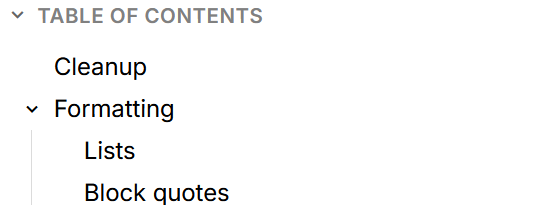
The table of contents displays the titles / headings in the current note and allows easy navigation.
The following note types are supported:
- Text
- Markdown
- PDFs, read-only ones included
- Word (
.docx) and OpenDocument Text (.odt) documents and EPUB e-books, among the Office documents - AI chat notes
- The pages of the in-app documentation
The table of contents of a PDF, Word, OpenDocument Text or EPUB file also appears when the file is an attachment opened on its own. The first time such a file is shown, Trilium reads its headings, and the table of contents shows Building the table of contents… meanwhile.
Interaction
- Clicking on a heading will scroll the document to the position of the heading.
- As the document is scrolled, the heading being read is highlighted and the list scrolls to keep it in view. If that heading is hidden inside a collapsed section, the collapsed heading is highlighted instead.
- Nested items can be collapsed by pressing the corresponding button.
- For a text or Markdown note, right-clicking a heading shows Copy reference, which copies a link that opens the note at that heading (see Block references). If the note is shared, Copy public link copies the link to that heading on the shared page.
- For a PDF, Word, OpenDocument Text or EPUB file, right-clicking a heading shows Copy reference as well, without Copy public link.
- Hovering over a heading that can be linked shows a button at its end, which does the same as Copy reference.
- An entry that no link can reach, such as an entry of a PDF outline that leads to no page, or an entry of an EPUB table of contents whose part of the book cannot be shown, is dimmed and cannot be clicked.
Highlights
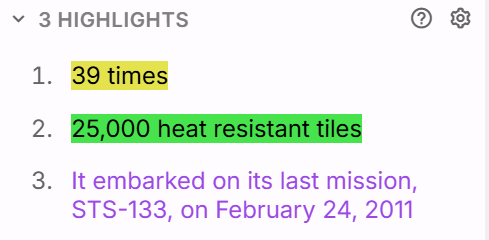
Similar to the table of contents, but instead of headings this feature will list highlighted text from a text note and allow easy navigation to them.
Unlike table of contents which supports multiple note types, the highlights are specific to the Text notes.
Highlighted text is defined as:
- Bold text.
- Italic text.
- Underlined text.
- Text with a foreground color set.
- Text with a background color/highlight set.
Interaction
- Clicking on a highlighted text will scroll the document to its position.
- In a text note, the scrollbar of the note marks each text with a foreground or background color with a faint line in those colors, side by side when a line has several. Clicking a line scrolls to that text. The lines follow the categories chosen below and show in the desktop layout only. While Search in note has results, the scrollbar marks only those, and the lines come back once the search finds nothing.
- To hide these lines, right-click the scrollbar and uncheck Highlights, or turn off Options → Text Notes → Features → Show highlighted text on the scrollbar. The setting applies to the current device only.
Configuration
- Globally, it's possible to toggle the display of each category of highlighted text (as defined above)
- Pressing the gear button in the top-right part of the section will reveal a menu to toggle between the highlight categories.
- Alternatively, they can be changed by going to Text Notes settings and looking for the Highlights List section.
PDF-specific outline
When PDFs are opened in Trilium, the Right Sidebar is augmented with PDF-specific navigation, with the following features:
- Table of contents/outline
- All the headings and “bookmarks” of the PDF are displayed hierarchically, in the table of contents described above.
- The heading being read is highlighted.
- Clicking on a heading will jump to the corresponding position in the PDF.
- Pages
- A preview of all the pages with a small thumbnail.
- Clicking on a page will automatically navigate to that page.
- Right-clicking a page and selecting Copy reference copies a link that opens the PDF at that page.
- Annotations
- Highlight and comment annotations are listed here.
- Right-clicking an annotation and selecting Copy reference copies a link that opens the PDF at that annotation.
- Attachments
- If the PDF has its own attachments (not to be confused with Trilium's Attachments), they will be displayed in a list.
- Some information such as the name and size of the attachment are displayed.
- It's possible to download the attachment by clicking on the download button.
- Layers
- A less common feature, if the PDF has toggle-able layers, these layers will be displayed in a list here.
- It's possible to toggle the visibility for each individual layer.