Tabs

In Trilium, tabs allow easy switching between notes.
Layout
Depending on the Vertical and horizontal layout:
- For the vertical layout, the tabs will be placed at the top but to the right of the Note Tree.
- For the horizontal layout, the tabs will be placed at the top in full-width, above the note tree, allowing for more tabs to be comfortably displayed.
Interaction
- To create a new tab, press the button that is to the right of the last tab.
- Right-clicking or pressing and holding the button shows a menu with:
- New tab.
- If there are any Workspaces, one entry per workspace, which opens the workspace in a new tab, hoisted into it.
- Recently changed notes: up to 15 notes, the most recently changed first, with the path of each note on the right. Notes that are already open in a tab are not listed, and in a hoisted note only its descendants are. Selecting a note opens it in a new tab.
- All recent changes, which opens the Recent Changes dialog.
- To close a tab, press the corresponding button.
- For multitasking, tabs can be used alongside Split View. Each tab can have one or more notes, displayed horizontally.
- Tabs can be reordered by drag-and-dropping it into a new position.
- An existing tab can be displayed in a new window by dragging the tab upwards or downwards; the new window opens under the mouse cursor, with the tab under the pointer. It is not possible to combine tabs back into another window.
Keyboard interaction
Since tabs are a commonly used feature, there are multiple keyboard shortcuts that can be used:
- Ctrl+T to open a new tab.
- Ctrl+W to close the current tab.
- Ctrl+Shift+T to reopen the last closed tab.
- Ctrl+Tab and Ctrl+Shift+Tab to go to the next or previous tab.
- Ctrl+1, Ctrl+2, up to Ctrl+9 to activate the first, second and up to ninth tab.
- There is also a shortcut to go to the last tab, but it is not assigned a key by default.
Full screen
To show Trilium in full screen, press F11 or the Fullscreen button in the Global menu. While in full screen, the tab bar shows a Leave full screen button before the Right Sidebar toggle; press it to return to the normal window.
Background tabs
When Trilium starts, it reopens the tabs from the previous session. Only the active tab loads its note right away; every other tab loads its note the first time you switch to it. This keeps startup fast when many tabs are open, especially tabs that show collections.
The same applies to a tab opened in the background, for example with a middle click or Ctrl+click on a link.
Mobile
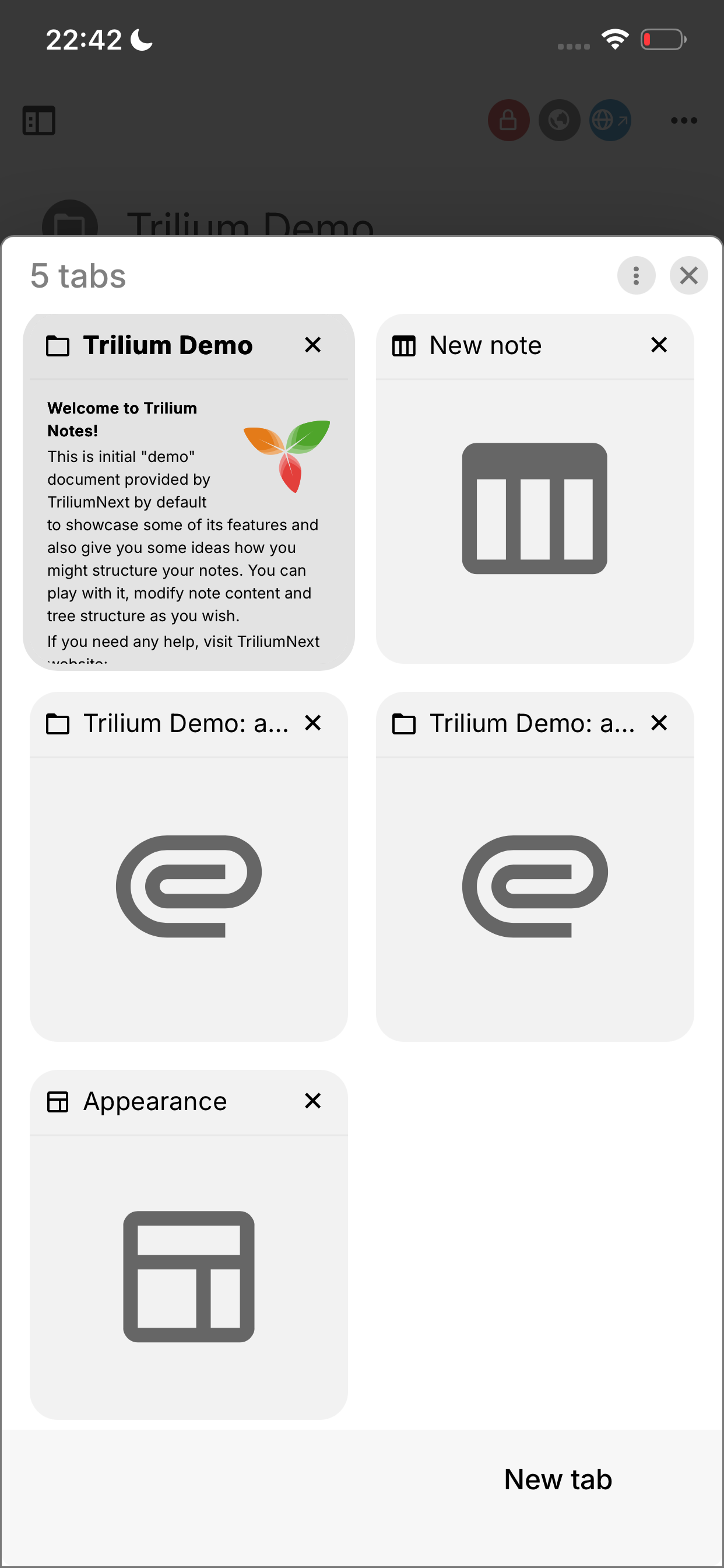
Tabs are also supported on the Mobile Frontend.
Since v0.102.0, the tabs are displayed by pressing the dedicated tab switcher button in the Launch Bar. In this view the tabs are laid out on a grid with a preview of the note content. On a phone, a tab left on the note tree shows the folder it was on instead, with the tab's note highlighted. Swiping left or right on the launch bar goes to the next or previous tab directly, as long as all of its buttons fit on the screen, with the page following the finger until it lets go.
The context menu button at the top-right of the popup allows creating a new tab, reopening the last closed tab and closing all the tabs.
Split Views are also indicated in the tab switcher, with two titles displayed in a tab.