Code
Trilium supports creating "code" notes, i.e. notes which contain some sort of formal code - be it programming language (C++, JavaScript), structured data (JSON, XML) or other types of codes (CSS etc.).
This can be useful for a few things:
- computer programmers can store code snippets as notes with syntax highlighting
- JavaScript code notes can be executed inside Trilium for some extra functionality
- we call such JavaScript code notes "scripts" – see Scripting
- JSON, XML etc. can be used as storage for structured data (typically used in conjunction with scripting)
For shorter snippets of code that can be embedded in Text notes, see Code blocks.
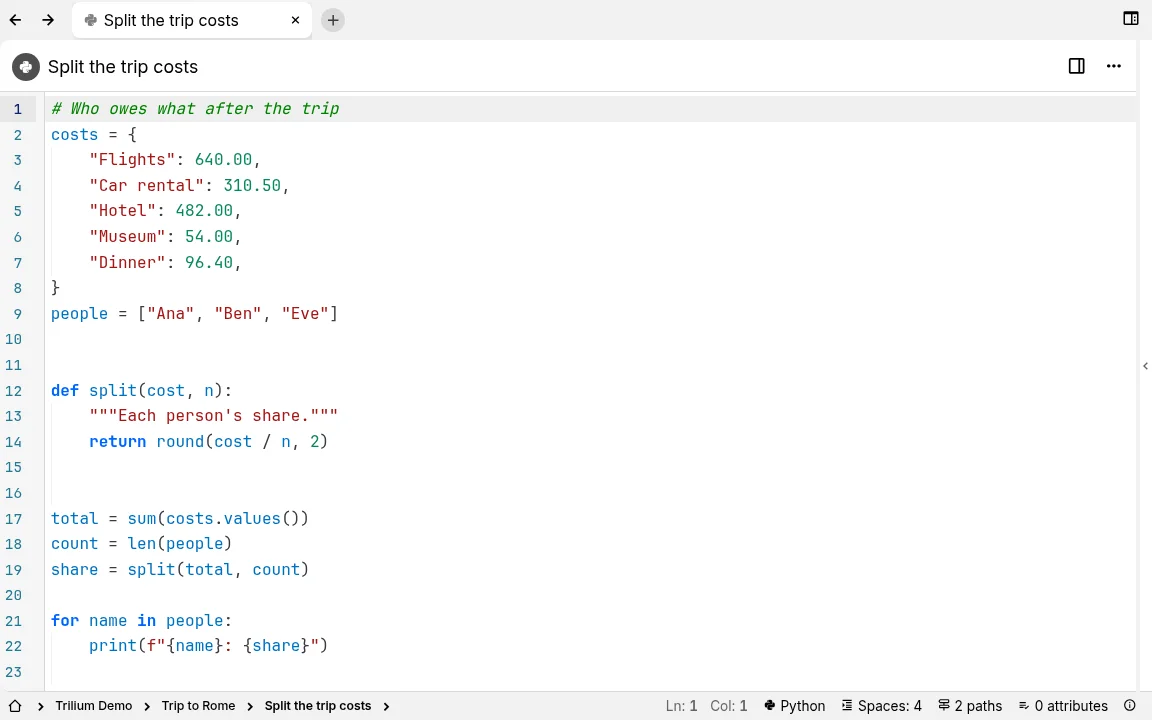
Creating a code note
In the Note Tree, right-click a note and select Insert child note or Insert note after, then:
- To create a plain text code note, select Code.
- To create a code note in a given language, hover Code and select the language. The list shows the languages enabled in the options (see below), and ends with Configure code notes..., which opens them.
Adjusting the language of a code note
To change the language of a code note, look for the icon in the Status bar. When clicked it will reveal the list of available languages (which can be customized according to the section below). The menu also features a search bar to quickly filter, and icons to visually distinguish some of the programming languages.
On the Mobile Frontend, the same list is available in the Note menu → Note settings → Change language mode.
Adjusting the list of languages
Trilium supports syntax highlighting for many languages, but by default displays only some of them. To change which languages are offered, go to Options → Code Notes and find Available MIME types in the dropdown. Here you can:
- Add a language by pressing the Add another language button, which also shows how many languages are left, and then selecting it. While picking, hover a language to see where it is syntax highlighted.
- Press the button beside a language, or select it and press Delete, to remove it from the list. Plain text cannot be removed.
- See where each language is syntax highlighted: the Code blocks badge stands for code blocks in text notes, the Code notes badge for code notes.
The languages are listed in the same order wherever you choose one: the language menu in the Status bar, the Code submenu when creating a note, and the language of a code block. By default, the list is sorted alphabetically, with Plain text first. To use an order of your own:
- Turn off the Sort alphabetically switch at the top of the section.
- Hold the = handle shown beside a language, and then drag it up or down. Alternatively, select a language and press Ctrl+↑ or Ctrl+↓.
Turning Sort alphabetically back on does not discard your order: it is used again the next time the switch is turned off.
Note that the list of languages is not immediately refreshed, you'd have to manually refresh the application.
The list of languages is also shared with the Code blocks feature of Text notes.
Word wrap
Long lines can be displayed on multiple lines:
- Globally for all code notes, from Options → Code Notes.
- For a particular note, by going to the menu in Note menu and selecting Word wrap and selecting the appropriate option:
- Auto, to respect the global word wrap for code notes.
- On or Off, to change the state of the word wrap for this note regardless of the global option.
Line numbers
The numbers at the start of each line can be hidden from Options → Code Notes → Editor → Line numbers. The setting applies to every code editor, such as the source of a Markdown note, and to code shown without its editor (see Color schemes below).
An included code note or an embedded code file can show or hide them on its own through the Line numbers submenu of its More actions menu, see Include Note. Its Auto entry follows the setting.
Adjusting options using the status bar
The status bar at the bottom of the editor shows the position of the cursor, the current indentation settings and language.
The cursor position is shown as Ln (the line) and Col (the column), both counted from 1. A tab counts as many columns as the display width of tabs, so the column matches where the cursor appears on screen. While text is selected, Selected shows the number of selected characters, counting each line break as one.
Clicking on the indentation indicator opens a menu with three sections:
- Indent Using — switch between Spaces and Tabs (
#indentWithTabs). If a per-note override is active, a "Reset to default" option appears. - Display Width — choose from preset widths (1, 2, 3, 4, 6, 8). Changes are saved as a per-note
#tabWidthlabel. - Re-indent Content To — convert existing indentation to a different style. For example, re-indent a file from 4 spaces to 2 spaces, or from spaces to tabs. This rewrites the leading whitespace on every line while preserving alignment remainders.
Clicking the language indicator lets you change the note's MIME type. As in the Note type selector, typing narrows the list of languages.
The same two menus are in the toolbar of a code note or a code file included in a text note, see Include Note.
Re-indentation
When you re-indent content, the editor:
- Measures the visual column width of each line's leading whitespace using the current style
- Calculates indent levels and any alignment remainder
- Rebuilds the leading whitespace in the target style
- Preserves non-leading whitespace, blank lines, and content without indentation
Transforming text
To change the selected lines or text, right-click the selection and open Transform. Its commands come in three groups:
- Sort ascending, Sort descending, Shuffle lines, Reverse line order and Deduplicate lines, which keeps the first copy of each line.
- Trim leading, Trim trailing and Trim both remove the whitespace at the start, at the end or at both ends of each line. Remove blank lines also removes the lines that hold only whitespace.
- To uppercase, To lowercase, To sentence case, To title case and Remove diacritics.
The commands of the first two groups change every line that the selection touches, even partly. Those of the third group change only the selected text. Each change is undone in one step with Ctrl+Z.
- Sorting reads numbers, dates and times by their value, as sorting a table does (see Tables), and ignores the case of letters and the indentation. Blank lines go last.
- To sentence case lowercases the text and capitalizes the first word of each sentence and of each line. To title case capitalizes every word except minor words such as "of" and "the", which stay lowercase unless they start or end a sentence.
- Remove diacritics turns letters such as
é,șandłintoe,sandl, and removes the vowel points of Hebrew and Arabic. Letters such asßandæstay as they are. - Sorting and the case changes follow the language set in Options → Language & Region → Default content language. In Turkish, for example, an uppercase
iisİ.
Vim keybindings
Code notes can be edited with Vim-style keybindings, which imitate the keys of the Vim text editor. To turn them on, go to Options → Code Notes → Editor and turn on Vim keybindings. The option applies to the current device only.
- If you are new to Vim, start with the Vim beginner guide.
- For the keys and commands, see the Vim full reference. Its rows marked Text notes only do not apply to code notes.
Text notes have a Vim mode of their own, with its own option and settings: see Vim mode.
Color schemes
Since Trilium 0.94.0 the colors of code notes can be customized by going Options → Code Notes and looking for the Appearance section.
A code note or a code file shown without its editor, such as in an Include Note, on the cards of Collections or in a tooltip, uses the same colors and line numbers as the editor does. A printout uses the Light theme. A shared page uses the VS Code light or dark theme, following the mode of the page.
Programming ligatures
If you see != displayed as ≠ or -> as → inside a code note, those are font ligature: the default monospace font draws certain character pairs as a single symbol. The underlying text is not changed by Trilium (unlike text notes which have Automatic replacements), and copying it out gives you back != and ->.
This can be turned off with Options→ Appearance → Fonts → Programming ligatures.
Virtual keyboard behavior
When using a virtual keyboard, keyboard suggestions and corrections are controlled as follows:
- For Markdown and plain text code notes, the autocorrect is on, as well as automatic capitalization.
- For all the other code notes, the autocorrect is off in order to avoid issues when typing code.