Mermaid Diagrams
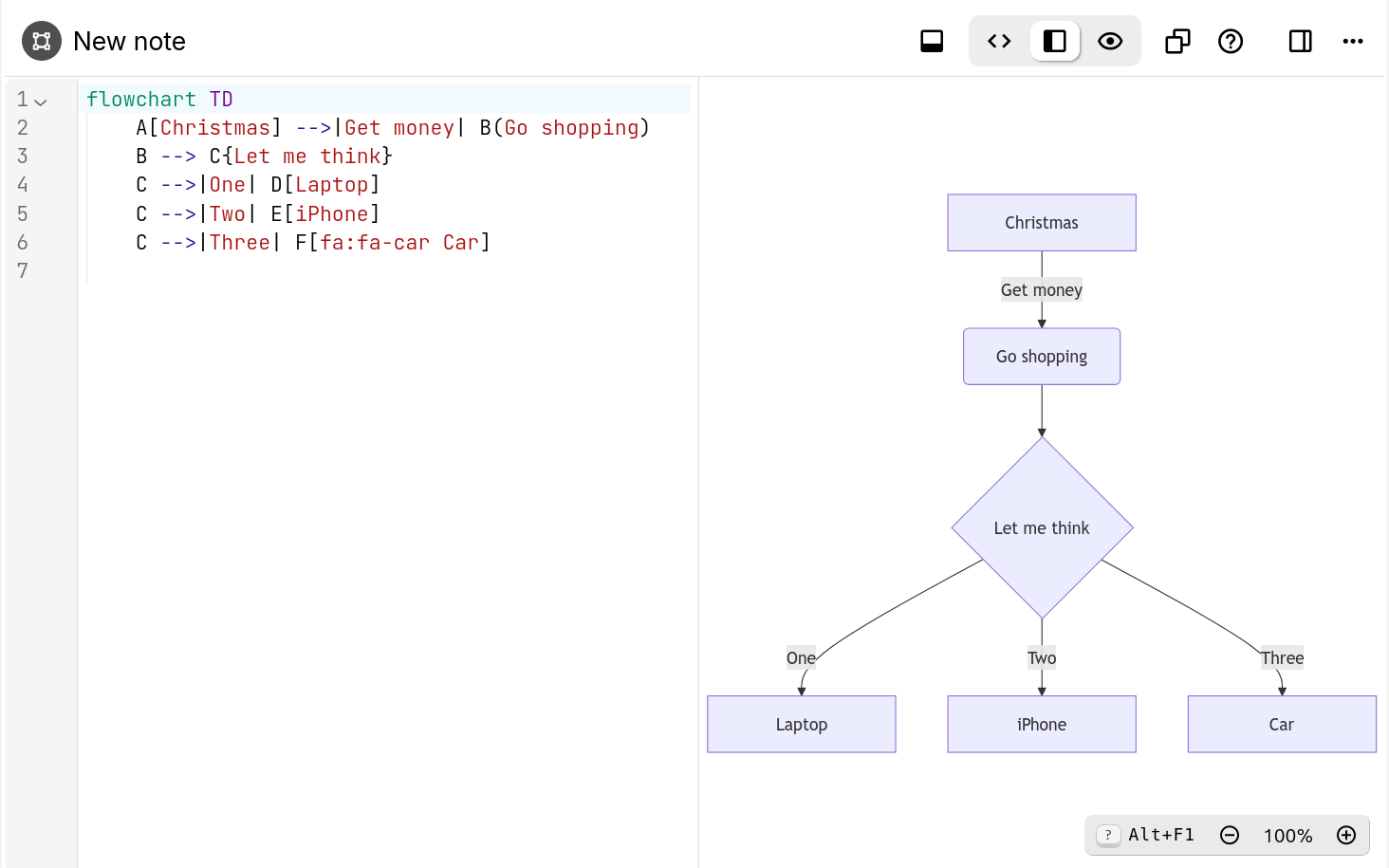
Trilium supports Mermaid, which adds support for various diagrams such as flowchart, sequence diagram, class diagram, state diagram, pie charts, etc., all using a text description of the chart instead of manually drawing the diagram.
This note type is a split view, meaning that both the source code and a preview of the document are displayed side-by-side. See Note types with split view for more information.
Sample diagrams
Starting with v0.103.0, Mermaid diagrams no longer start with a sample flowchart, but instead a pane at the bottom will show all the supported diagrams with sample code for each:
- Simply click on any of the samples to apply it.
- The pane will disappear as soon as something is typed in the code editor or a sample is selected. To make it appear again, simply remove the content of the note.
Layouts
Depending on the chart being edited and user preference, there are two layouts supported by the Mermaid note type:
- Horizontal, where the source code (editable part) is on the left side of the screen and the preview is to the right.
- Vertical, where the source code is at the bottom of the screen and the preview is at the top.
It's possible to switch between the two layouts at any time by pressing the icon in the Note buttons.
Interaction
- The source code of the diagram (in Mermaid format) is displayed on the left or bottom side of the note (depending on the layout).
- Changing the diagram code will refresh automatically the diagram.
- The front matter (the block between
---lines at the start of the diagram, which holds its title and configuration) is highlighted as YAML, and so are the node properties of flowcharts and Kanban boards (such as@{ shape: tool }). Configuration directives (%%{init: …}%%) are highlighted apart from comments, and so are the accessibility title and description (accTitle:andaccDescr:). - Ctrl+/ (Mac: ⌘+/) comments out the current or selected lines with
%%, or with#in the front matter. Pressing it again on commented lines removes the comment marker.
- The preview of the diagram is displayed at the right or top side of the note (depending on the layout):
- There are dedicated buttons at the bottom-right of the preview to control the zoom in, zoom out or fit the diagram.
- The preview can be moved around by holding the left mouse button and dragging.
- Zooming can also be done by using the scroll wheel.
- The zoom and position on the preview will remain fixed as the diagram changes, to be able to work more easily with large diagrams.
- Double-clicking the preview resets the zoom/position.
- The preview can also be focused by clicking on it, case in which keyboard shortcuts can be used:
- + or E to zoom in, - or Q to zoom out.
- / to reset the zoom/position.
- Arrow keys or W A S D to pan. Holding Shift pans faster.
- The size of the source/preview panes can be adjusted by hovering over the border between them and dragging it with the mouse.
- In the Note buttons:
- The source/preview can be laid out left-right (via ) or bottom-top (via ).
- Press the (Copy image reference to the clipboard) to be able to insert the image representation of the diagram into a text note. See Image references for more information.
- To export the diagram as either SVG or PNG, go to the Note buttons and select Export as image:
- Select SVG (vector) to download a scalable/vector rendering of the diagram. Can be used to present the diagram without degrading when zooming.
- Select PNG (raster) to download a normal image (at 1x scale, raster) of the diagram. Can be used to send the diagram in more traditional channels such as e-mail.
- The note can be marked as read-only, case in which it switches by default to the preview (although it can be switched back using the source/preview buttons) and the source is no longer editable.
Errors in the diagram
If there is an error in the source code, the error will be displayed in an information pane.
During the state of an error, the diagram will no longer be rendered and the previously working diagram will remain in the preview section.
Diagrams in a text note
To show a diagram inside a Text note instead of in a note of its own, insert one with the Mermaid diagram button of the Insert menu. It has the same views, zoom and error display as a Mermaid note, and its source stays in the text note as a code block. See Mermaid diagram in Insert buttons.