General formatting
Headings
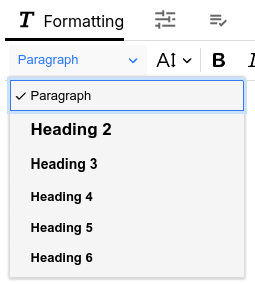
Trilium provides headings to define sections within text. Headings are numbered from 2 to 6.
The reason why Heading 1 is missing from the list is that it is being reserved for the title of note. A Heading 1 that is already in the text, for example in text pasted from another application, is kept as a heading.
To turn a heading back into a normal text, select Paragraph from the list.
Apart from using the UI, it is also possible to quickly insert headings using the Markdown-like shortcuts:
##for Heading 2###for Heading 3####for Heading 4#####for Heading 5######for Heading 6
A heading can be collapsed to hide the content under it, see Collapsible headings.
Font size
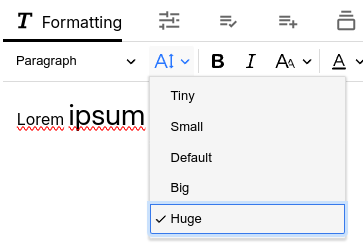
One way to highlight a portion of text is to increase the size of the font.
To do so, select some text and choose an option from the Font size () selector (as pictured to the right).
Unlike other text editors such as Microsoft Word, the font size is relative (i.e. “Tiny”, “Small” instead of a number like 12).
Avoid using this feature just to simply make all text bigger. In that case it's generally better to adjust the font size for all notes in Options or by zooming.
Bold, italic, underline, strike-through
Text can be formatted as Bold, Italic, Underline or Strike-through via the dedicated buttons (, , , ) in the formatting toolbar.
This formatting can be easily removed using the Remove formatting () item.
The following keyboard shortcuts can be used here:
- Ctrl+B for bold
- Ctrl+I for italic
- Ctrl+U for underline
Alternatively, Markdown-like formatting can be used:
- Bold: Type
**text**or__text__ - Italic: Type
*text*or_text_ Strikethrough: Type~~text~~
Superscript, subscript
This allows writing superscript or subscript text.
This is mostly useful for units of measure (e.g. cm3 for cubic centimeters) and chemical notations (e.g. NaHCO3)
For mathematical formulas, prefer the Math Equations feature instead.
Font color and background color
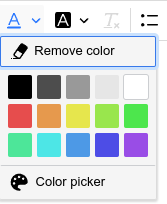
Selected text can be colored with one of the predefined colors from a palette or any color can be selected using the color picker (). A selected link preview can be colored the same way (see Link Previews).
Once there is at least one color defined in the document, it will appear in the list for easy reuse.
Colors adapt to the theme. Trilium shows each color in a lighter or darker shade that suits the current theme, so the text stays readable after switching between light and dark themes. The hue stays the same: red text is red in both themes, only lighter or darker. This applies to the palette, the color picker and the document colors alike, and to shared notes too. The swatches of the font color and background color dropdowns show the same shades on a sample text, "Ab": as the color of the text, or as the background behind it. Printed notes and PDF exports always use the shades of light themes, which suit white paper. The note itself keeps the color as it was picked, so an exported note shows it unchanged.
Colors applied with older versions of Trilium are shown exactly as they were picked, until the note is next edited.
Older browsers that can't adapt colors show them exactly as they were picked.
When you paste text copied from a web page in Chrome, Edge or a Chromium-based app (such as Visual Studio Code), Trilium removes the page's styling:
- Text and background colors.
- Fonts and font sizes.
- Table borders, backgrounds and spacing.
The following formatting is preserved:
- Bold, italic, underline and strikethrough.
- Subscript and superscript.
- Links, code and tables.
Colors are preserved when pasting from Word, Google Docs or another note.
To remove either the background or foreground color of a text, select the corresponding formatting button ( or ) and press Remove color () or use the Remove formatting () toolbar item.
Remove formatting
The Remove formatting button is a quick way to eliminate the general formatting styling of a particular text.
Simply select the text and press the button to remove the formatting (bold, italic, colors, sizes, etc.). If the text does not have any removable formatting, the button will appear disabled.
Note that heading styles are not taken into consideration, these must be manually changed back to a paragraph according to the Headings section.
When pasting content that comes with undesired formatting, an alternative to pasting and then removing formatting is pasting as plain text via Ctrl+Shift+V.
Format painter
The Format Painter allows users to copy the formatting of text (such as bold, italic, Strikethrough, etc.) and apply it to other parts of the document. It helps maintain consistent formatting and accelerates the creation of rich content.
Support for Markdown
When exported to Markdown, most of the general formatting is maintained such as headings, bold, italic, underline, etc.