Web Clipper
Trilium Web Clipper is a web browser extension which allows user to clip text, screenshots, whole pages and short notes and save them directly to Trilium Notes.
Supported browsers
Trilium Web Clipper officially supports the following web browsers:
- Mozilla Firefox, using Manifest v2.
- Google Chrome, using Manifest v3. Theoretically the extension should work on other Chromium-based browsers as well, but they are not officially supported.
Obtaining the extension
The extension is available from the official browser web stores:
Functionality
- select text and clip it with the right-click context menu
- click on an image or link and save it through context menu
- save whole page from the popup or context menu
- save a PDF that the browser shows, as a file note
- save a screenshot of an area you select, of the visible part of the page or of the whole page, from either popup or context menu
- create short text note from popup
The popup
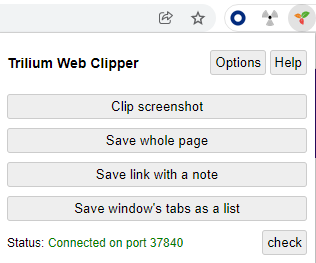
Clicking the extension's button in the browser toolbar opens its popup:
The popup shows what will be saved from the current page: the note's title, which can be edited before saving, the website, and below them a preview, which starts with a box for your own note and the page's description. A switch above the preview chooses what to save, among what the page offers:
- Selection, when text is selected on the page: Save selection saves it into the note of that page's clippings, as the context menu does.
- Page: Save page to Trilium saves the page's text and images. A smaller switch at the top of the preview chooses how much of the page to keep: Article keeps only the page's main text, without its menus, sidebars and footers, and Whole page keeps everything the page shows. Whole page is for pages that are not an article (such as a gallery or a page of cards), where Article can leave out part of the content; the preview shows what each one keeps. Article is unavailable on a page where Trilium finds no article. The author the page names shows under the description, marked by the icon. It can be edited or cleared before saving, or written in when the page names none, and is saved in the
#pageAuthorlabel of the note. When the page states when it was published, that date shows under the author, marked by the icon, and is saved in the#publishedDatelabel of the note. When it states when it was last modified, that date shows below, marked by the icon, and is saved in the#modifiedDatelabel. - PDF, when the tab shows a PDF in the browser's viewer: Save PDF to Trilium downloads the PDF and saves it as a file note, which Trilium opens in its PDFs viewer. Only the title and the description can be edited, since a file note has no text of its own for your note. The page's address is saved in the note's
#pageUrllabel and the PDF's file name in#originalFileName. Saving a PDF needs Trilium v0.107.0 or later. - Bookmark, always: there is no preview, and Save bookmark saves a link to the page with your note as the content of the note. Left empty, the title stays the page's title.
The box for your note, marked by the icon, has the cursor when the popup opens, so a note (such as why the page is worth keeping) can be typed right away. It grows with its text, and keeps it when switching between Selection, Page and Bookmark. A note on a selection or a page is saved above the clipped content, in a Note admonition. Left empty, nothing is added. Ctrl+Enter in any of the popup's fields saves, whichever is chosen.
The description, marked by the icon, comes from the page's
descriptionmeta tag, or the one it gives social sites. It can be edited or cleared before saving, or written in when the page has none, and is saved in the#pageDescriptionlabel of the note. Clippings saved with the keyboard shortcuts or the context menu, screenshots and images included, get the description as the page gives it. Each clipping that brings a description updates the label. The description, the author and the dates are shown by clicking the Web clip badge next to the title of the note (see Note badges).The popup opens on the selection if there is one, otherwise on Page, showing the article, or the whole page when the page has no article. On a PDF, it opens on PDF. On a page that shows nothing to save, it opens on Bookmark and says so. The keyboard shortcuts and the context menu still save right away, without a preview: saving the whole page that way saves the article, the whole page when the page has no article, or the PDF when the tab shows one.
Pages the extension cannot access (the browser's own pages, the extension stores, and pages that were open before the extension was installed until they are reloaded) cannot be saved or captured, so the popup says so in place of the preview, and only All tabs remains available there.
Below the preview, a row of buttons offers the other actions: Area (a screenshot of an area you select), Visible (a screenshot of the visible part of the page), Full page (a screenshot of the whole page) and All tabs (saves the links of every tab in the current window as a list of Link Previews, or of text links when Autogenerate link previews is turned off). Hovering over a button shows its full name and, if it has one, its keyboard shortcut.
Full page scrolls through the page, takes a screenshot of each part and joins them into one image, then scrolls back to where the page was. The scrollbars are hidden while it does, so they do not appear in the image. Stay on the tab until it is saved: switching to another tab stops the screenshot. A header that stays at the top of the window appears once, at the top of the image, and headings that stick while scrolling appear where they are in the page. Other elements that stay in place while scrolling (such as cookie banners and chat buttons) are left out, while a background that fills the whole window repeats on every screen. In Firefox, the page is captured without scrolling through it, which is faster: such a background then appears only at the top, and images that the page loads only once they are scrolled into view can be missing. A long page is saved as several images, one below the other in the note. A page longer than 100 screens is cut off there, and the message after saving says so. Screenshots keep their full height in Trilium: Resize image (under Automatically compress images in Options → Media) limits only their width.
The popup stays open while Trilium saves, which can take a few seconds for a long page or a large PDF, and the other actions wait until it is done. The bar at the top of the popup then says, in green, that the clipping was saved (in place of the notice that the page was already clipped), with Open note to open it in Trilium (and, after All tabs, Close saved tabs), or, in red, why it could not be saved. The same clipping cannot be saved twice by accident: the save button stays disabled until another mode is chosen. Crop is the exception: the popup closes so that an area of the page can be selected, and the notification on the page reports the outcome.
If the current page was already clipped, a notice at the top offers to open the note in Trilium.
If Trilium cannot be found, the popup explains why instead of showing the actions, with buttons to look for Trilium again and to open the options.
The bottom of the popup shows whether the extension is connected to Trilium, as a colored dot (green when connected, amber when the versions are not compatible, red when Trilium was not found) next to a description of the connection, followed by the buttons for the extension's options and for this help page. A button to check the connection again appears next to them when hovering over the bar, and stays visible while Trilium cannot be reached or is not compatible.
Location of clippings
Trilium will save these clippings as a new child note under a "clipper inbox" note.
By default, that's the Day Notes but you can override that by setting the label clipperInbox, on any other note.
Further clippings of the same kind from the same page are added to the note created by the first one, even on a later day or after that note was moved out of the clipper inbox. The note stays where it is and is not cloned back into the inbox. A PDF is the exception: each save creates a new file note, since the PDF can have changed since it was last saved.
The icon of a clipped note shows what was saved:
- a selection, a screenshot or a link from the context menu;
- a page (Article or Whole page);
- a bookmark;
- the tabs of a window.
The icon is derived from the note's #clipType label, so setting an #iconClass label on the note replaces it. A saved PDF has the icon of a PDF file, like any other PDF in Trilium.
Embedded videos
A YouTube video embedded in a clipped page is saved as a Link Previews embed, with the video's title and thumbnail. As with a link preview added in the editor, the video plays only when clicked. Other embedded content (such as videos from other websites) is not saved.
The popup's preview shows each such video as a chip with the YouTube icon and the video's short link, and leaves out the embedded content that will not be saved.
Keyboard shortcuts
Keyboard shortcuts are available for most functions:
- Save selected text: Ctrl+Shift+S (Mac: ⌘+⇧+S)
- Save whole page: Alt+Shift+S (Mac: ⌥+⇧+S)
- Save a screenshot of an area: Ctrl+Shift+E (Mac: ⌘+⇧+E)
- Save all tabs of the current window: no default shortcut, but one can be assigned as described below.
- Save a screenshot of the whole page: no default shortcut, but one can be assigned as described below.
To set custom shortcuts, follow the directions for your browser.
- Firefox:
about:addons→ Gear icon ⚙️ → Manage extension shortcuts - Chrome:
chrome://extensions/shortcuts
Configuration
The extension needs to connect to a running Trilium instance. By default, it looks for the desktop application on port 37840 of the local computer. If the desktop application runs on a different port (for example because it was started with the TRILIUM_PORT environment variable), enter that port in the extension's options. The extension checks for Trilium again every minute, or right away when pressing the refresh button at the bottom of its popup.
It's also possible to configure the server address if you don't run the desktop application, or want it to work without the desktop application running.
To connect to a server, enter its address and your password in the extension's options and press Login to the server instance. If the server uses multi-factor authentication, also fill in Authentication code with the current code from your authenticator app (or one of your recovery codes); otherwise leave it empty. The password and the code are used only once, to obtain a token for the extension, and are not stored.
When a clipping fails
After each clipping made with a keyboard shortcut or the context menu, a notification in the corner of the page confirms that it was saved, with a link to open the new note in Trilium. A clipping made from the popup reports in the popup instead, unless the popup was closed before it was saved. If the clipping could not be saved, the message says why instead:
- Trilium was not found: start the desktop application, or check the server address and token in the extension's options.
- The versions of Trilium and the extension are not compatible: update the one the message names.
- Trilium rejected the request: the message includes the reason Trilium gave.
- The popup could not reach the extension's background script, or it gave no answer: close the popup and open it again. If the extension was just updated or reloaded, reload the page as well.
- A PDF could not be saved: Trilium is older than v0.107.0, the website refused to send the PDF again, or the PDF is larger than 100 MB. The extension downloads the PDF with the browser's cookies for that website, so a PDF behind a login can be saved while you are logged in.
The extension downloads the images of a clipping itself, so that they are stored in Trilium together with the note. If some of them cannot be downloaded (for example because the website refuses the request), the clipping is still saved, and the notification says how many images are missing. Those images keep their address on the original website: Trilium tries to download them once more if Download images automatically is enabled in Options → Media, and otherwise the note shows them from the website for as long as it serves them.
The notification is shown on the page itself, so it does not appear on pages where extensions cannot run (such as the browser's own settings pages, the extension stores and Firefox's PDF viewer). A clipping saved from the popup on such a page still reports in the popup.
Testing development versions
Development versions are version pre-release versions, generally meant for testing purposes. These are not available in the Google or Firefox web stores, but can be downloaded from either:
- GitHub Releases by looking for releases starting with Web Clipper.
- Artifacts in GitHub Actions, by looking for the Deploy web clipper extension workflow. Once a workflow run is selected, the ZIP files are available in the Artifacts section, under the name
web-clipper-extension.
Chrome
- Download
trilium-web-clipper-[x.y.z]-chrome.zip. - Extract the archive.
- In Chrome, navigate to
chrome://extensions/ - Toggle Developer Mode in top-right of the page.
- Press the Load unpacked button near the header.
- Point to the extracted directory from step (2).
Firefox
- Navigate to
about:addons. - Select Extensions in the left-side navigation.
- Press the Gear icon on the right of the Manage Your Extensions title.
- Select Install Add-on From File…
- Point it to
trilium-web-clipper-[x.y.z]-firefox.zip. - Press the Add button to confirm.
Credits
Some parts of the code are based on the Joplin Notes browser extension.